
Step 1: Chat — Conversational Collaboration at the Component Level
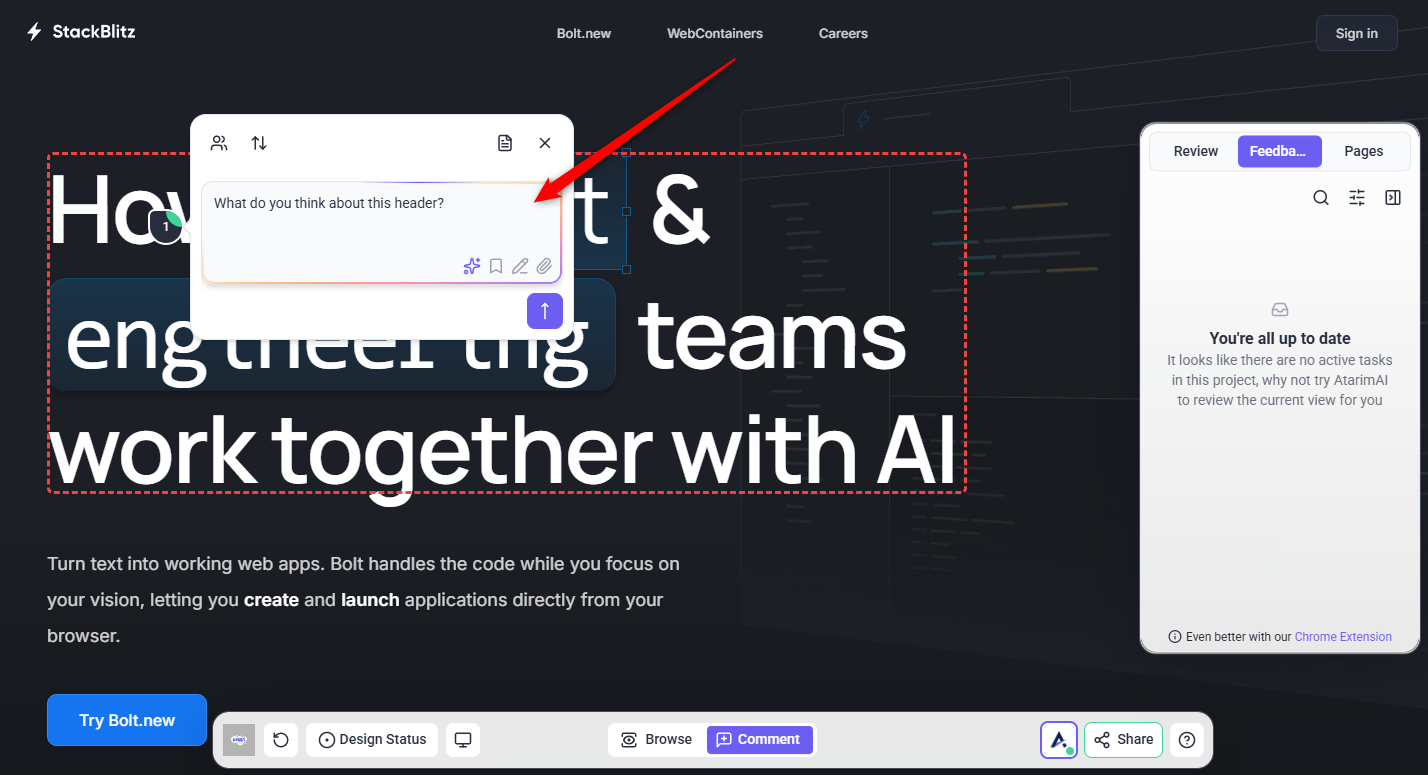
Chat lets you ask questions directly on page elements and instantly receive contextual feedback from the InnerCircle agents. Whether it’s design, copy, accessibility, or structure, the responses are tailored to the exact section you’re working on.
Note: This AI feature is meant only for your internal team members. AI activity is hidden from clients and guests by default. You get depth, your guests get to give feedback and get out.
Instructions:
- Open a project in Atarim’s visual collaboration interface.
- Hover over any section of the page and click the element to open task modal.
- Click the AI chat icon inside the task modal.
- Ask questions like:
- “What do you think of this footer?”
- “How can I improve this section?”
- Receive intelligent responses tailored to the selected section.
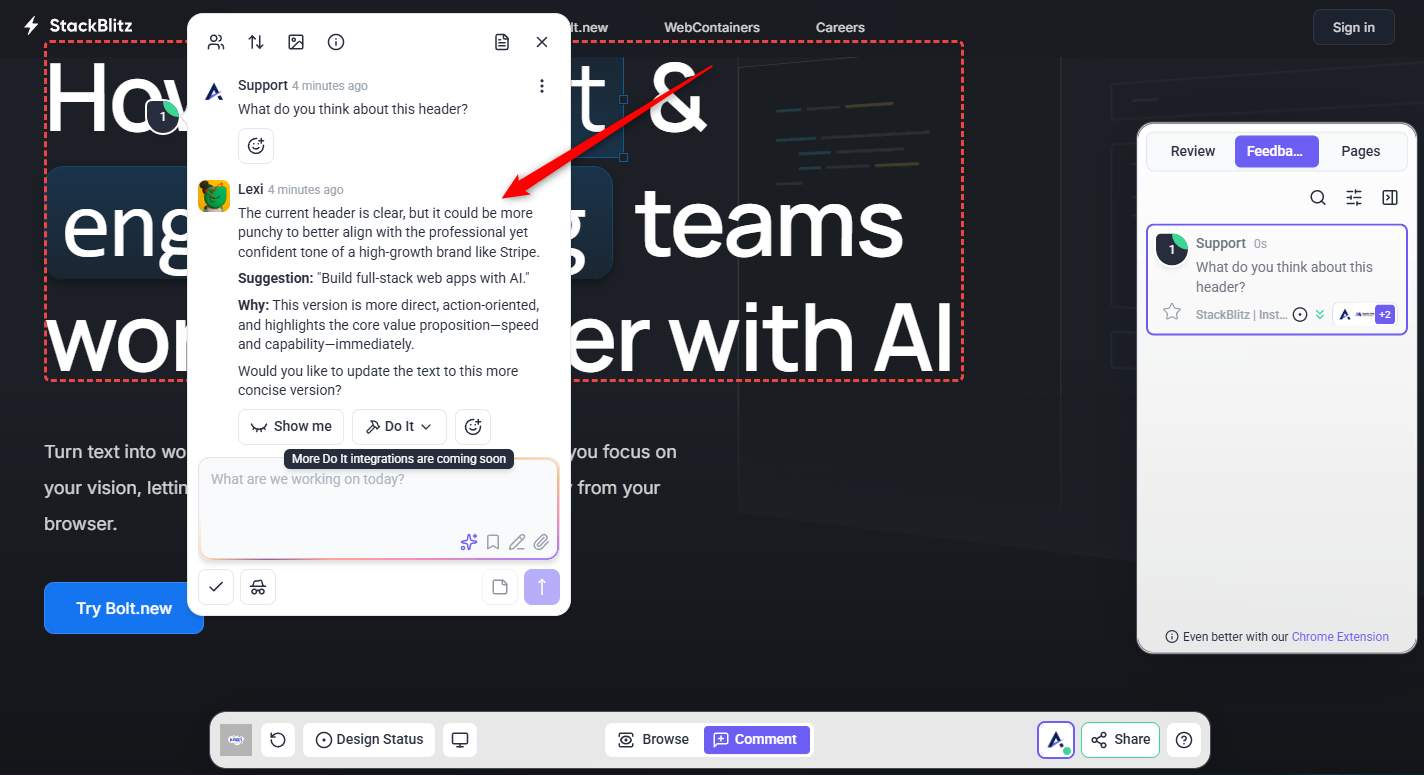
Options Available After InnerCircle Responds
After an InnerCircle agent provides feedback, several options may appear below the response. These options help your team review, capture, or act on the AI suggestion without leaving the task.
Preview
The Preview option lets you preview the AI suggested change on the selected website section.
Use this when you want to see how the suggestion may look before applying it. This is helpful for checking whether the updated copy, layout, or selected component still feels clear and visually aligned with the page.
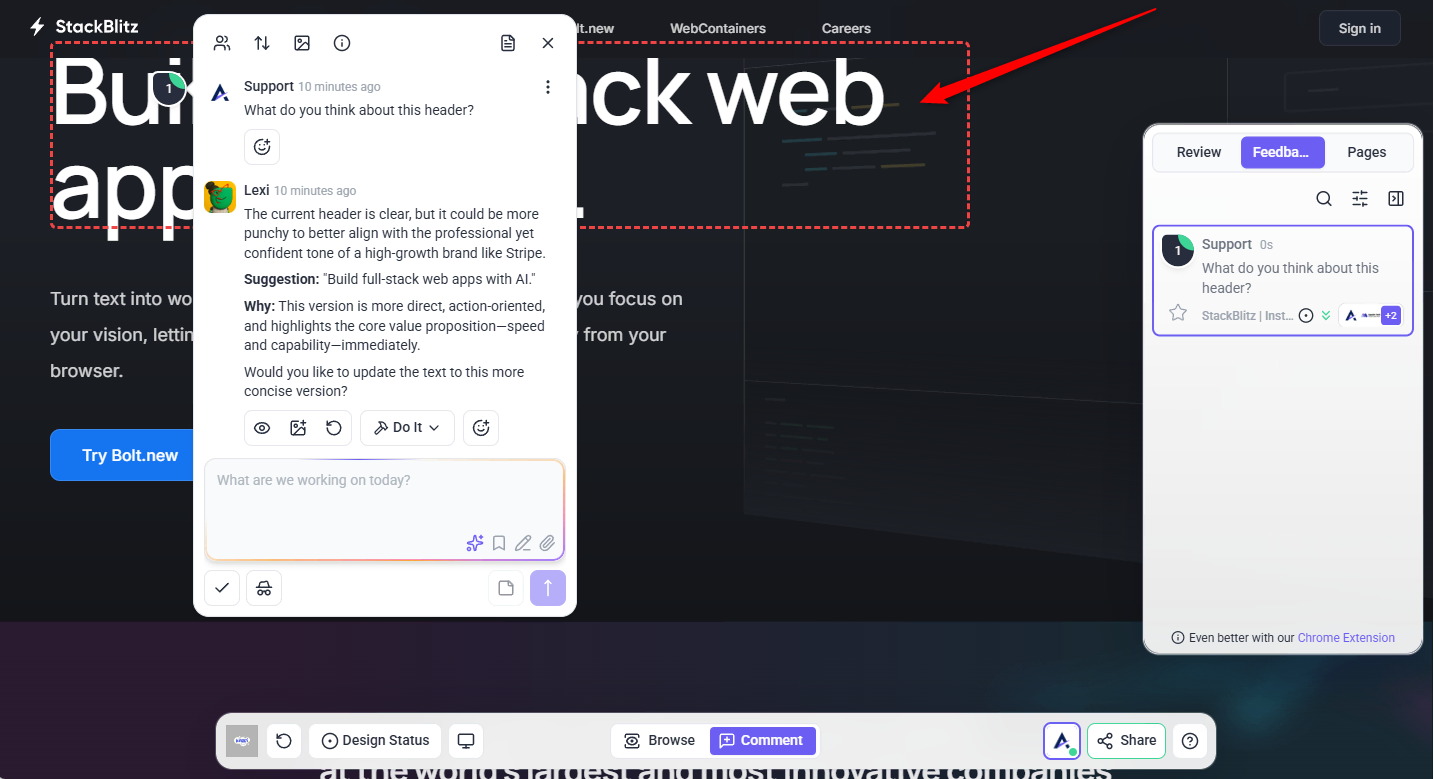
Tip: After reviewing the preview, you can hide it to return to the normal page view. Hiding the preview only removes the visual preview from the screen.
Do It
The Do It option lets you take action on an AI suggestion. Use this when InnerCircle recommends a change and you want to apply it or move forward with the recommended update.
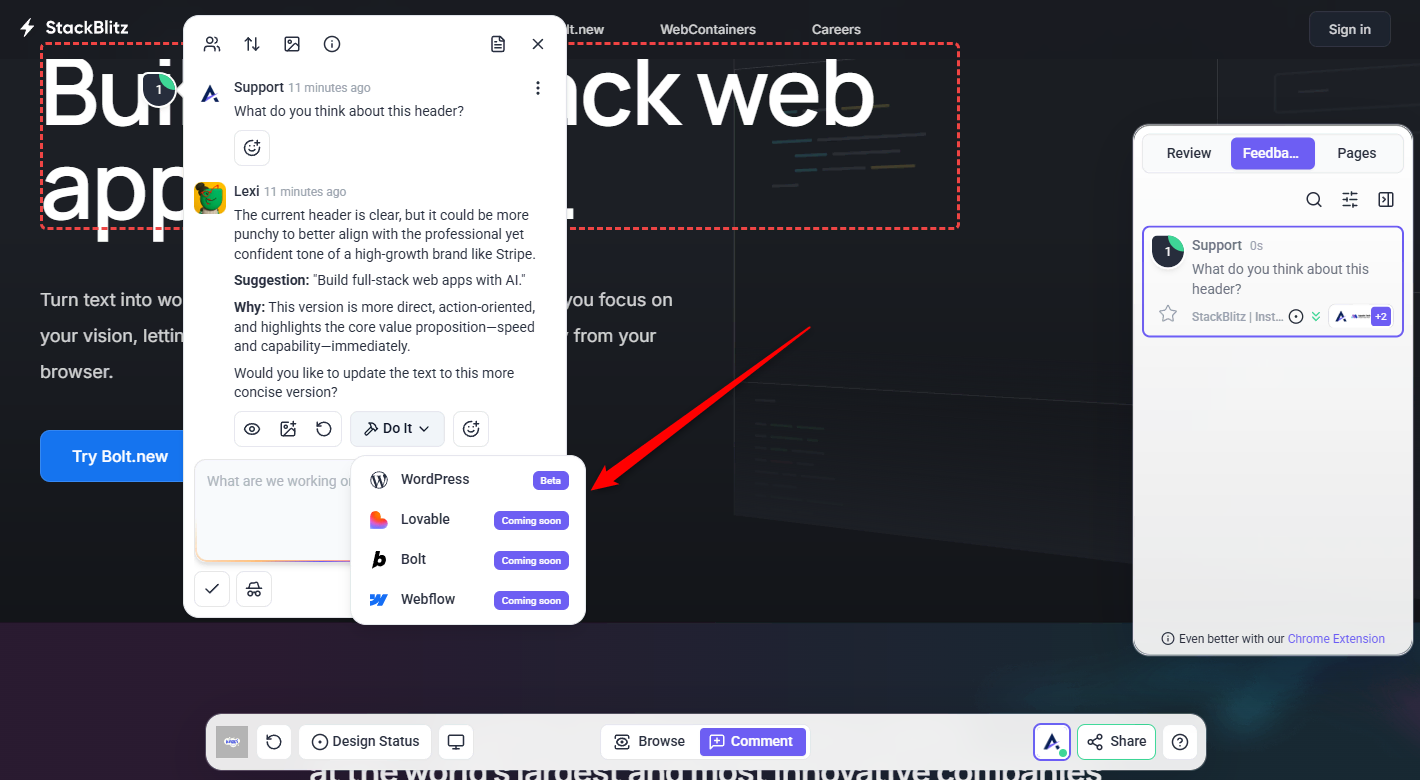
Tip: Click Do It to choose where the suggested change should be applied.
Take Screenshot and Add as Comment
This lets you capture the current selected area and add it as a comment inside the task.
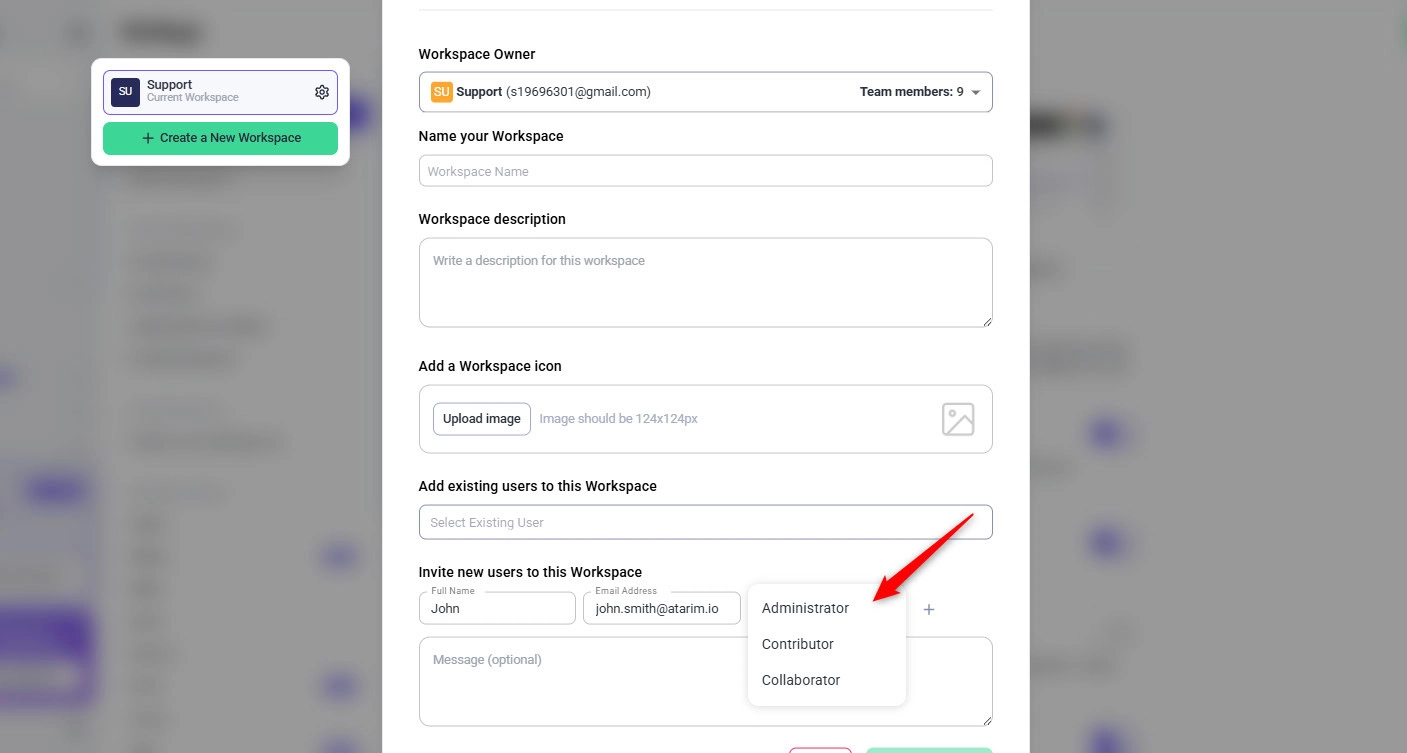
Note: Use this when you want to keep a visual record of the selected component, the AI suggestion, or the current page state.
Hide Preview
This option allows you to revert or reset the previewed change. Use this when you want to return the selected section back to its original state after previewing an AI suggestion. This is helpful if the suggested change does not look right, if you want to compare the original version again, or if you are not ready to move forward with the update.
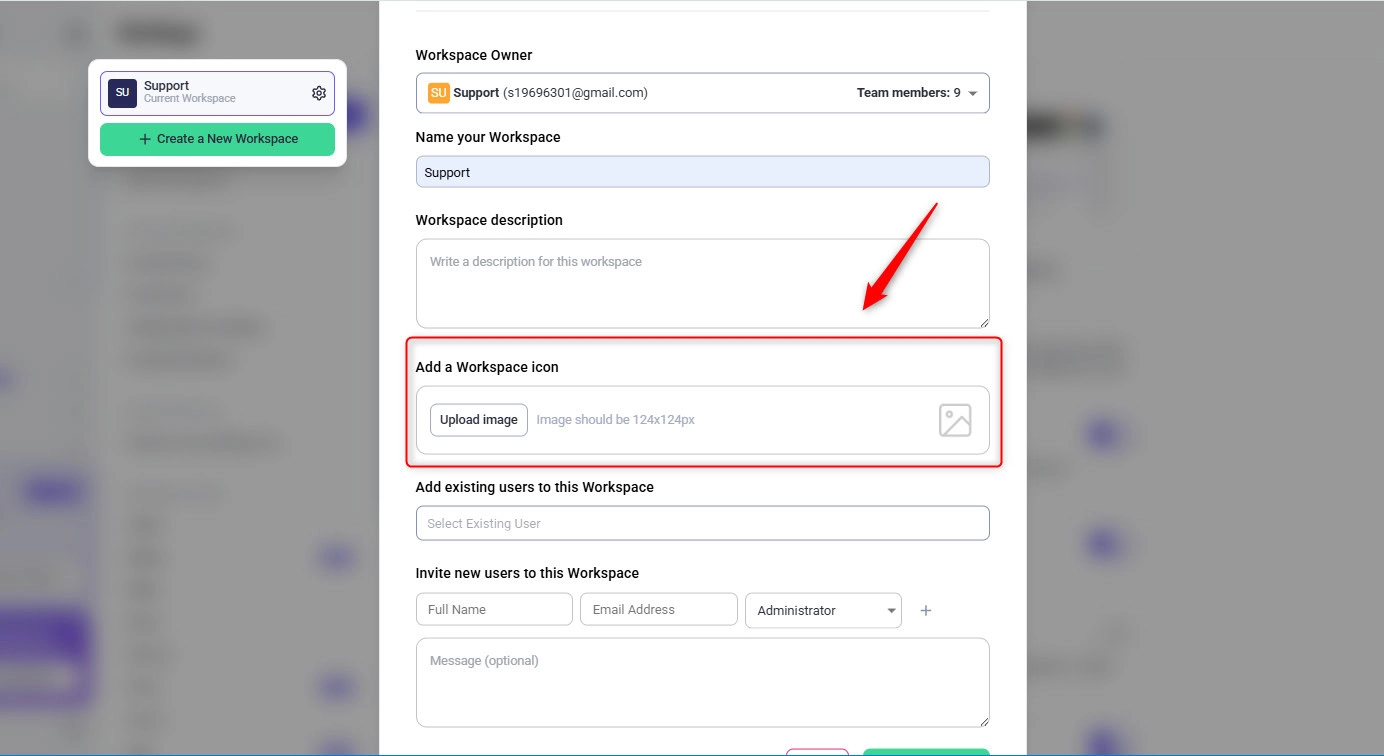
Tip: Use Hide Preview when you only want to stop viewing the preview, but still want to continue reviewing the AI suggestion inside the task.
Regenerate Preview
This option creates a new preview of the AI suggested change.
Use this when you want the system to refresh the preview before deciding whether to apply the suggestion. This is useful if the preview did not load clearly, if the selected section needs to be refreshed, or if you want to generate the preview again after reviewing the AI recommendation.
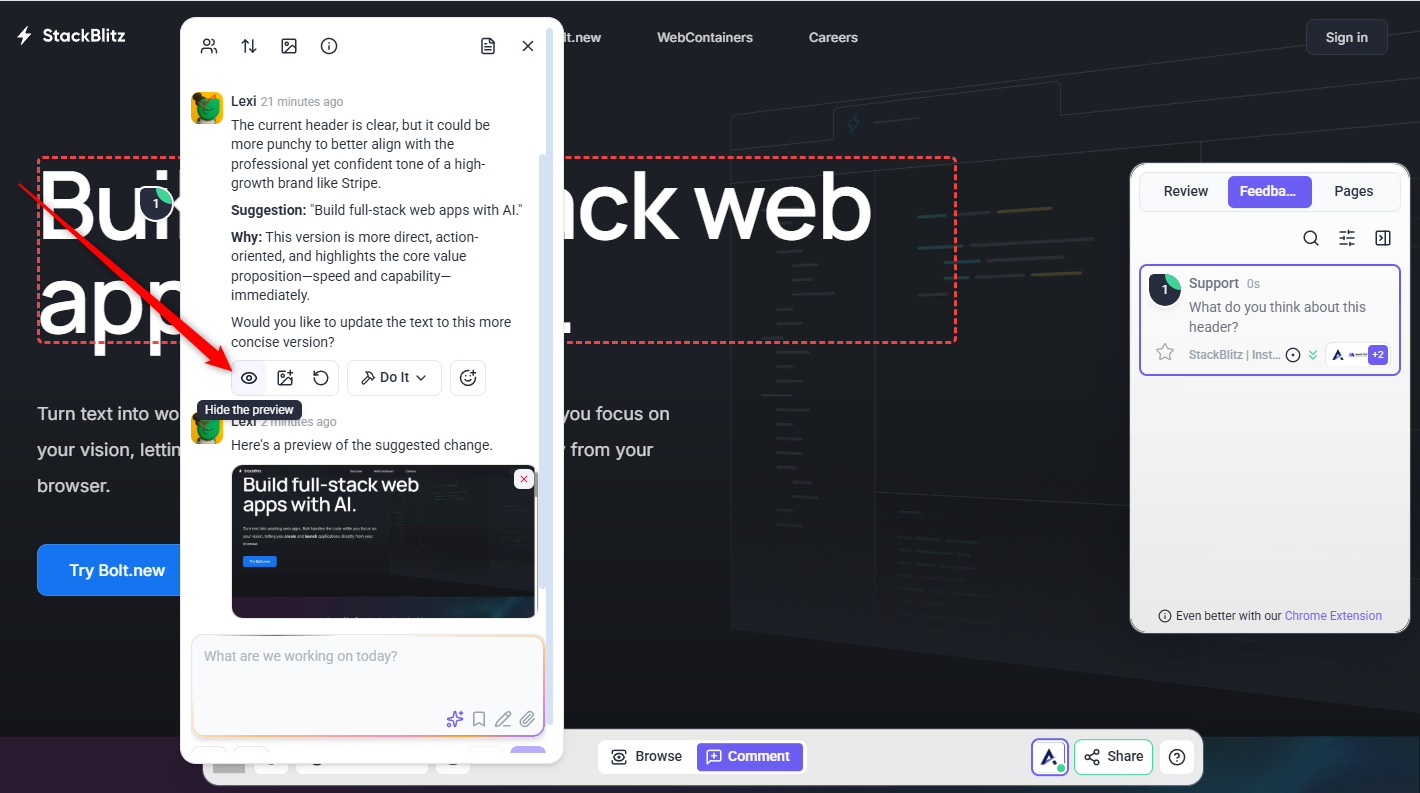
Note: Regenerating the preview does not apply the change permanently. It only creates a new preview for review.
Tip: Use Regenerate Preview before clicking Do It if you want to confirm how the suggested change will look on the selected website section.
The InnerCircle
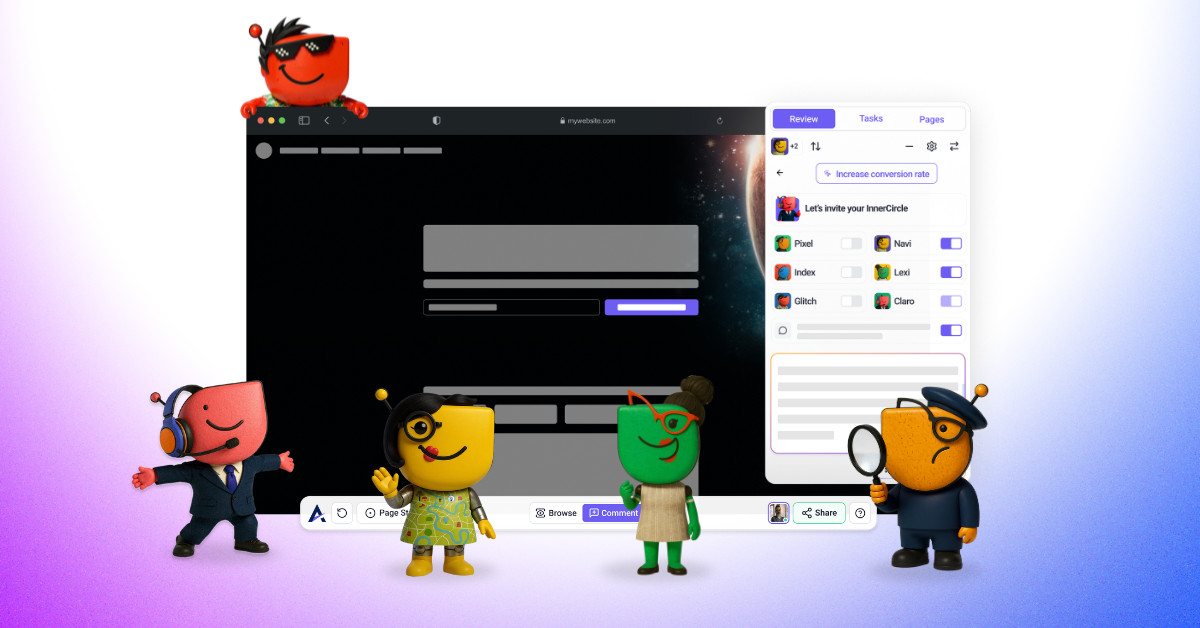
The Inner Circle is Atarim’s team of specialized AI agents, each focused on a different domain of expertise — design, copy, accessibility, SEO, clarity, and technical performance. Working individually or together, they deliver precise, actionable feedback across every domain of your project.
- Lexi – Refines microcopy, rewrites CTAs, fixes passive voice, and aligns tone with brand.
- Pixel – Identifies layout misalignments, spacing issues, and visual inconsistencies.
- Index – Checks for missing meta titles, descriptions, image alt text, and link structure.
- Navi – Scans for contrast ratios, font sizes, screen reader compatibility, and ARIA tags.
- Claro – Detects vague comments and rewrites them into actionable, clear instructions.
- Glitch – Flags broken links, form errors, console issues, and unresponsive interactive elements.
Learn More About Lexi | Learn More About Pixel | Learn More About Index
Learn More About Navi | Learn More About Claro | Learn More About Glitch
Recommendation: Ideal during early-stage wireframes, internal QA, and component-level revisions.
Tip: Use follow-up questions such as “Can this CTA be more compelling?” to prompt more targeted suggestions from the agents.
Step 2: Review — Automated Page-Wide Evaluation
Atarim’s AI can scan your entire canvas using multiple agents to deliver strategic insights across design, structure, accessibility, and more. Learn How to Run a Page Review
Note: This AI feature is meant only for your internal team members.
AI activity is hidden from clients and guests by default.
You get depth, your guests get to give feedback and get out.
Deeper Website & Design Connectivity
AI Reviews now operate with deeper structural connectivity to websites and designs. This allows the AI to reliably detect and flag individual elements across complex layouts and nested sections.
Because of this improved detection depth, you may notice more comments than before when running a review. This reflects increased accuracy and coverage, not duplicate or noisy feedback.
Instructions:
- Open your project using the URL method.
- Add your Review context — describe what you’d like your InnerCircle to focus on, or choose from a preset.
- Click Review This Page button in the canvas toolbar.
- Select which agents to activate:
- Pixel (Design)
- Lexi (Content)
- Index (Structure/SEO)
- Navi (Accessibility)
- Glitch (Bug Detection)
- Claro (Feedback Clarity)
- (Optional) Add a short description to help guide the review.
- Click Review Page to initiate the scan.
- Click Start Review or Reply to Refine Direction
What You’ll See
- A high-level summary of the page
- Section-specific AI stickers pinned directly to elements
- Feedback analyzed across desktop, tablet, and mobile viewports
- The most critical issues surfaced from thousands of checks
- Team notes, top priorities, and recurring themes
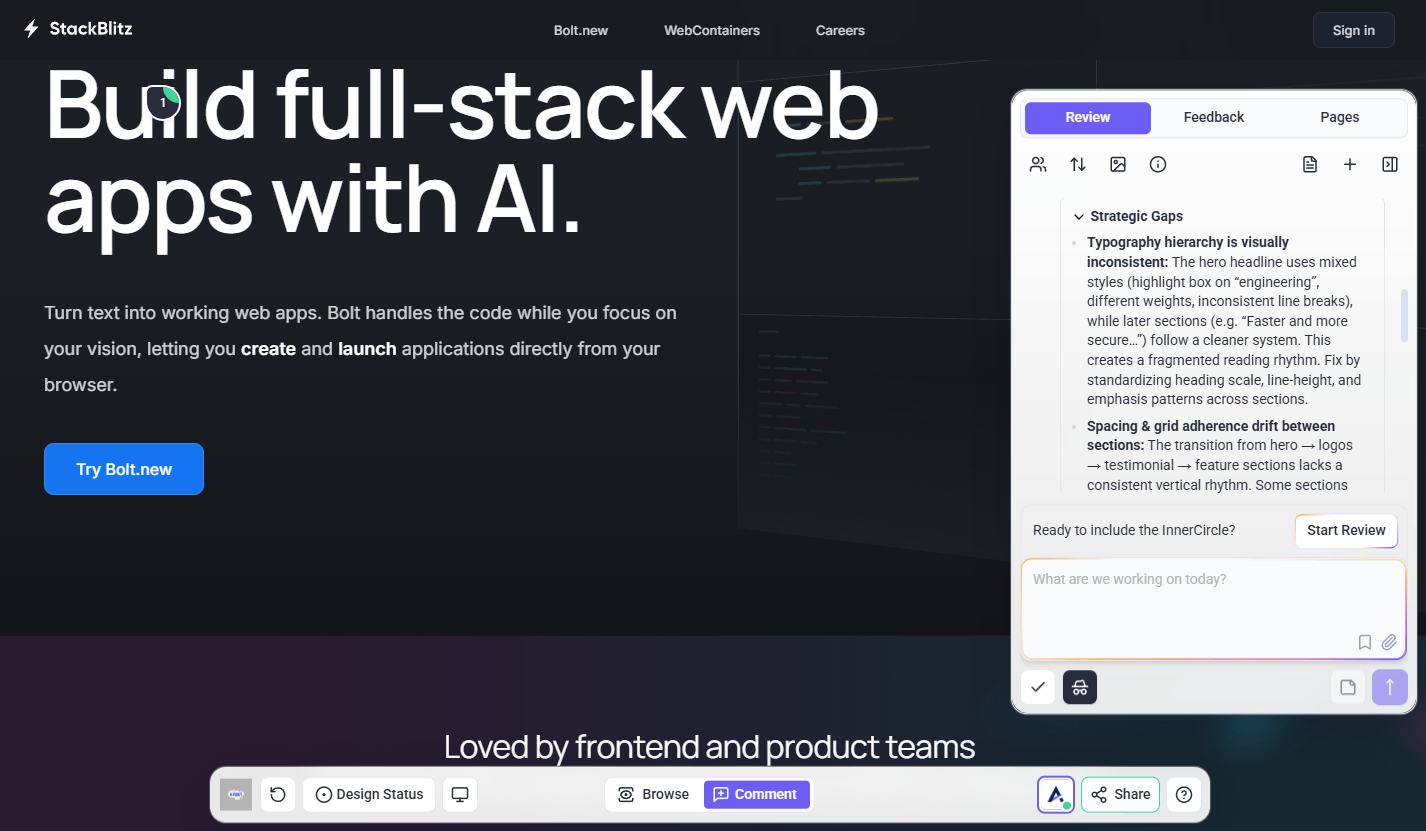
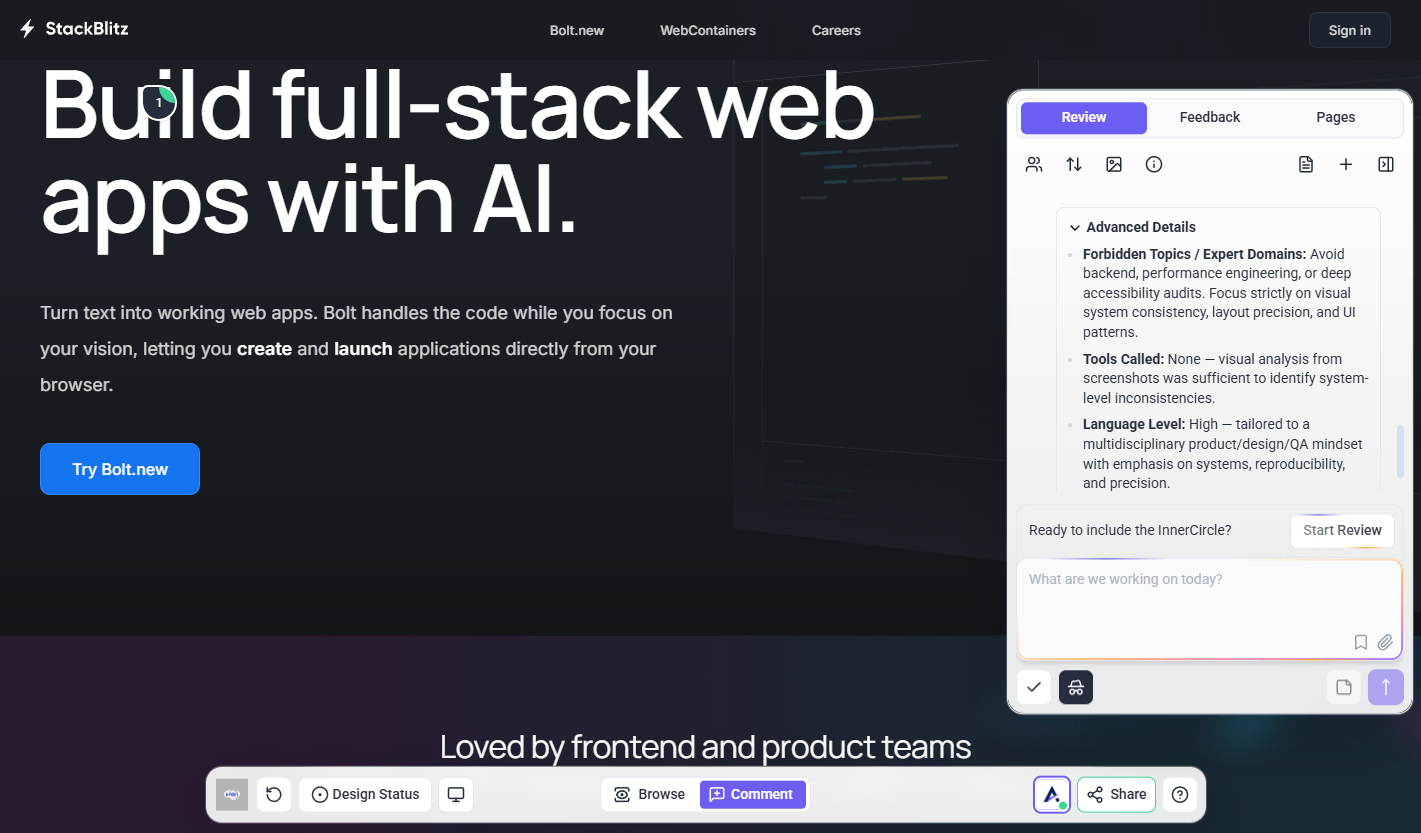
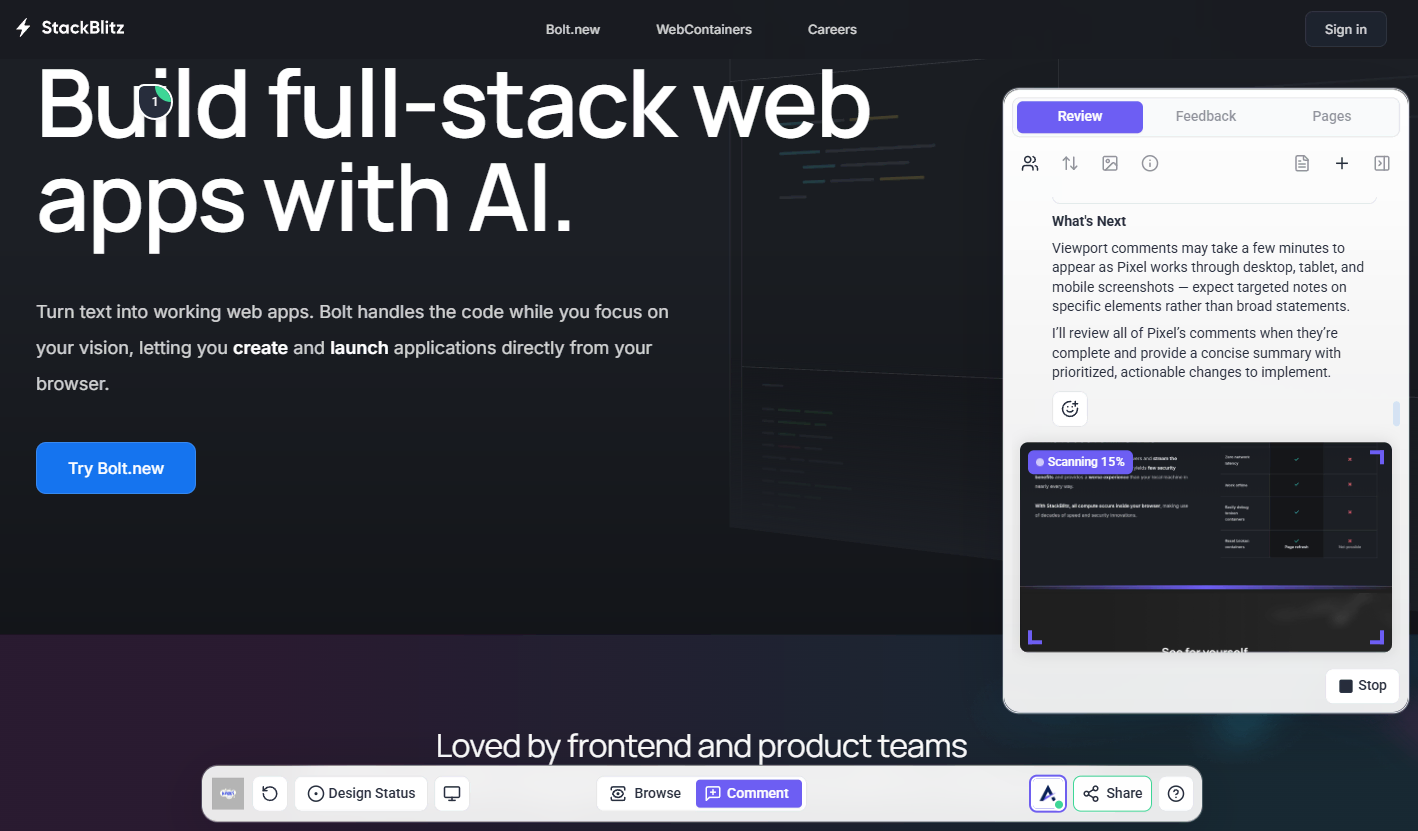
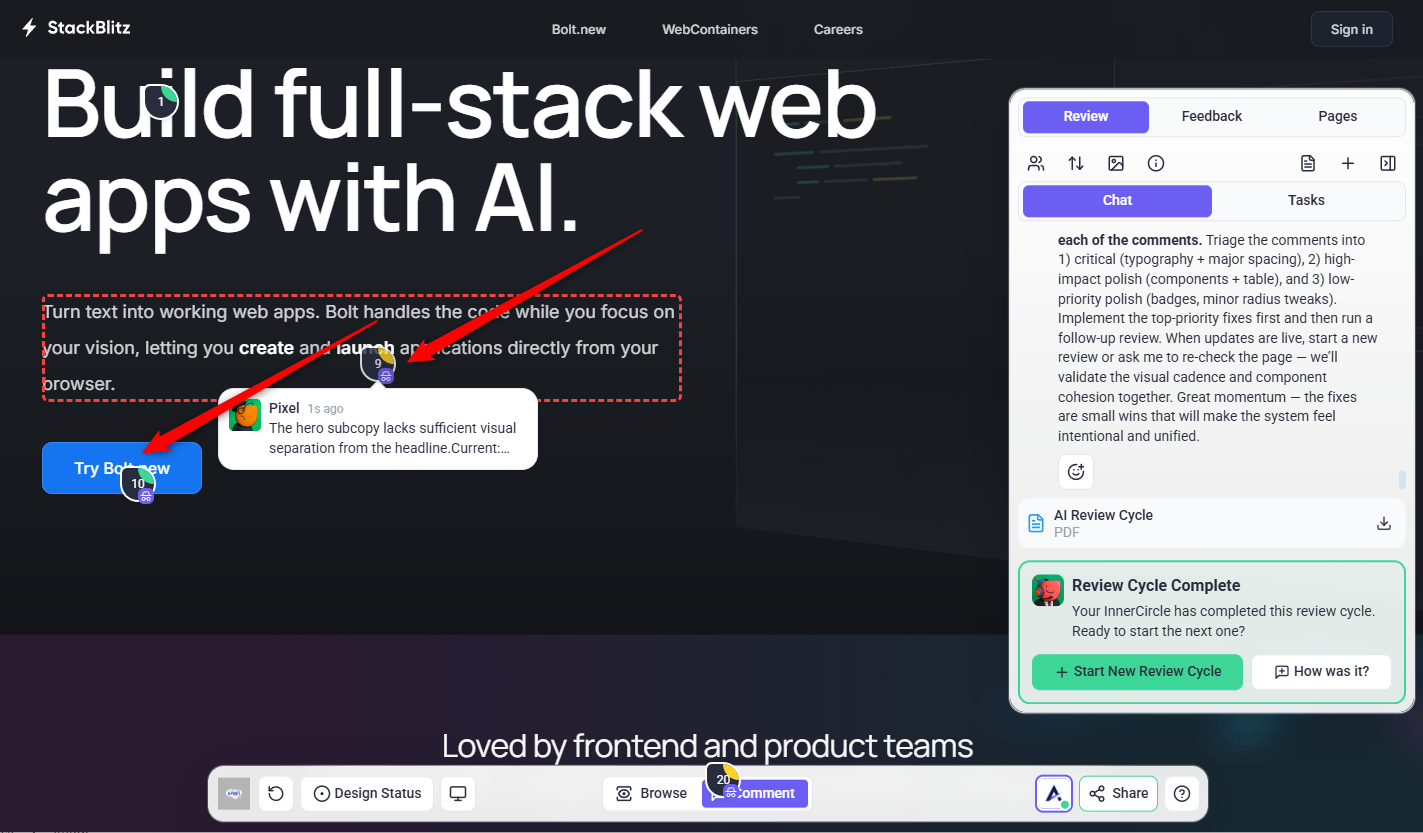
Recommendation: Use the Review Description field to guide AI attention toward specific goals (e.g., accessibility or content tone).
Note: All AI generated review tasks are set to Internal by default, unless this setting is manually changed.
Understanding AI Prioritization
AI review results are automatically prioritized by impact, using the same logic as regular Atarim tasks:
- High priority (red): Items that affect conversions, clarity, or primary actions (e.g. making a main CTA more prominent)
- Medium priority (orange): Usability and hierarchy improvements
- Lower priority: Cosmetic refinements such as line breaks or minor typography issues
This helps you focus on high-impact improvements first and avoid spending time on low-value fixes.
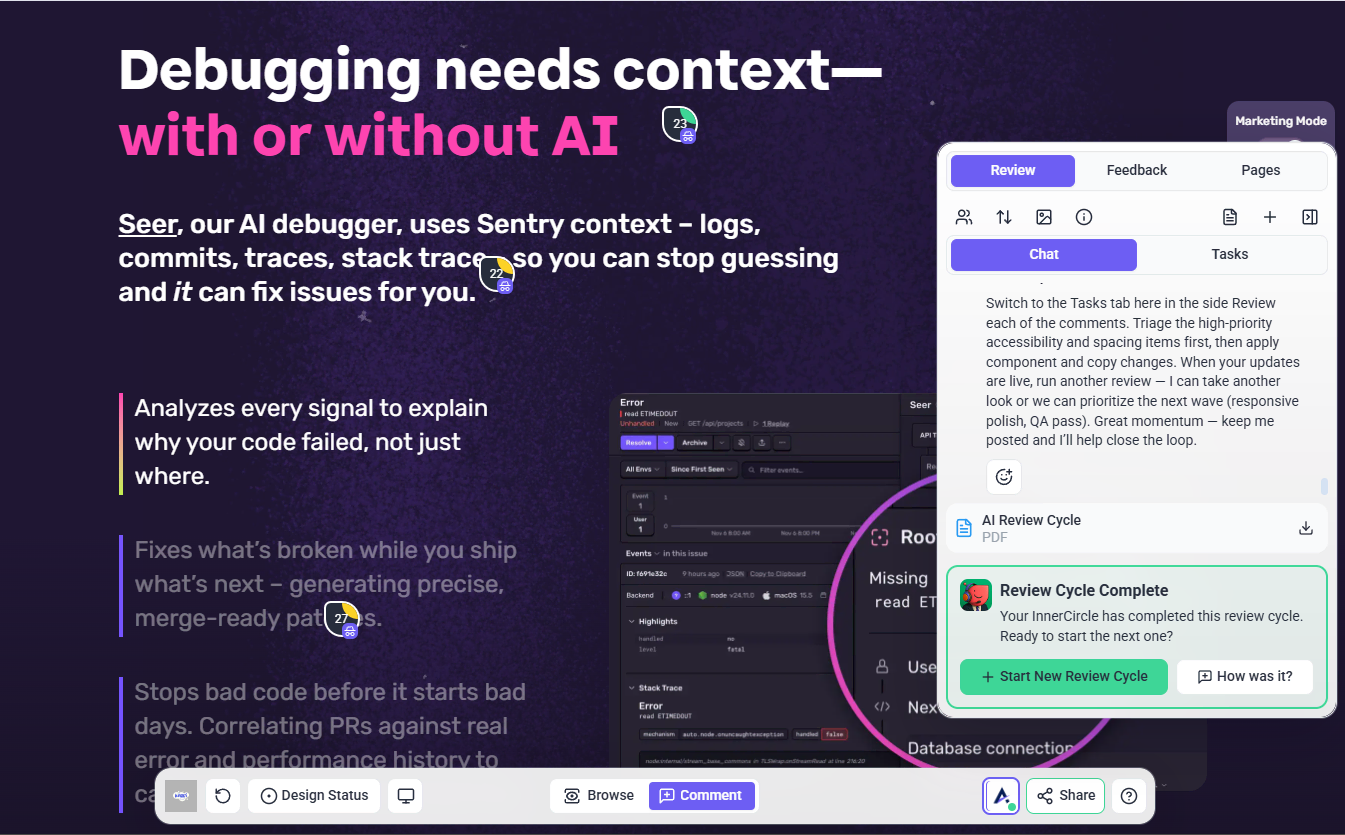
Recommendation: Start with red items, then move to orange. Defer cosmetic suggestions when time is limited.
AI Review Cycle Report
After an InnerCircle review is completed, Atarim generates an AI Review Cycle Report as a downloadable PDF.
This report gives your team a full summary of the review, including the total number of items found, issue severity, review intent, expert feedback, top priorities, and recommended next steps.
Each report may include:
- Review cycle number and date
- Total items found
- Critical, medium, and low issue counts
- Review intent
- High level summary
- Recurring themes
- Expert notes and observations
- Top priorities
- Failed audits
- Issues to address
- Diagnostics and recommendations
- Expert name, device, and viewport details for each item
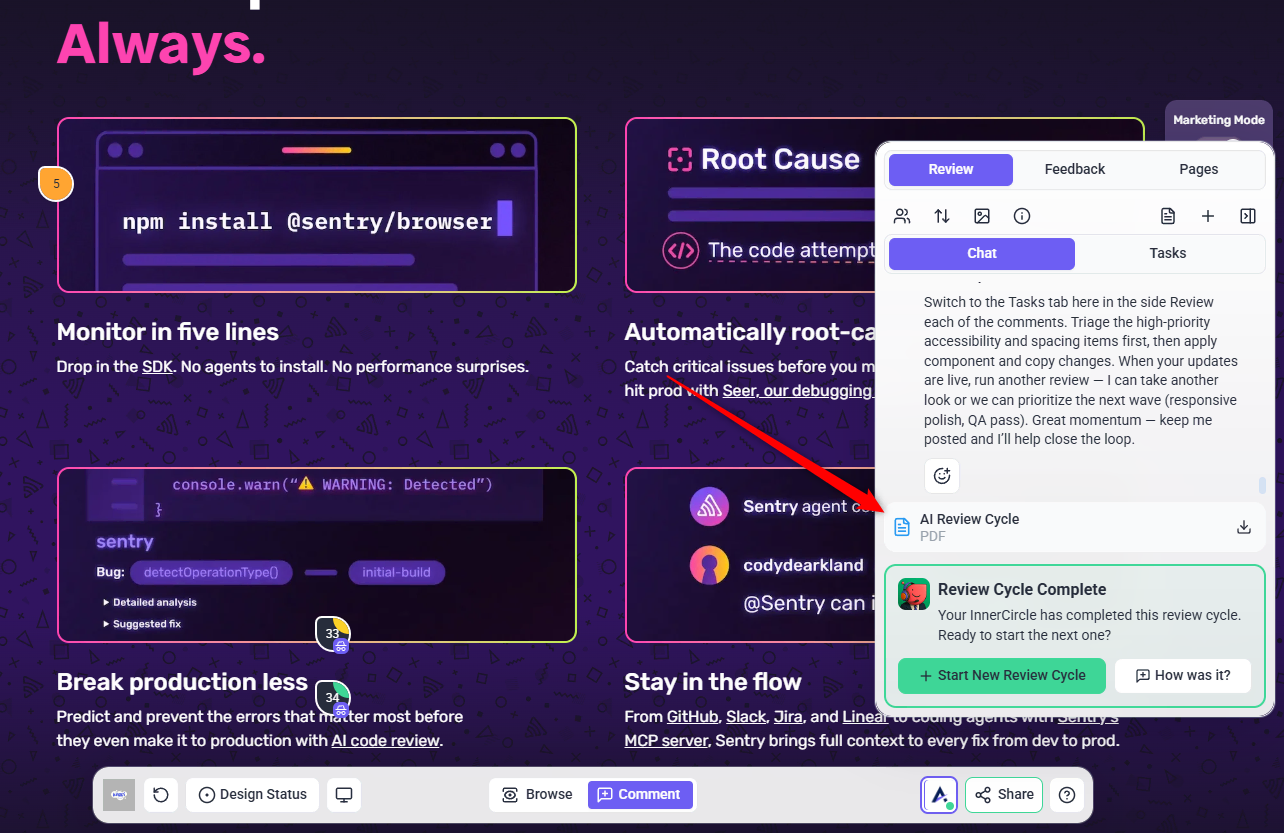
Tip: Use the report when you want to share a structured review summary with your internal team, keep a record of the review cycle, or review the full list of recommendations outside the visual collaboration panel.
Review Tasks View
Atarim organizes the AI generated recommendations into structured tasks inside the Review panel. Each task card shows a specific recommendation from the InnerCircle review.
A task card may include:
- Screenshot or visual preview
- Short issue summary
- Issue category
- AI agent or InnerCircle indicator
- Task number or marker
- Priority or status indicator
Example categories include:
- Component Consistency
- Accessibility
- Value Proposition
- Visual Consistency
- Spacing
- Meta Description Optimization
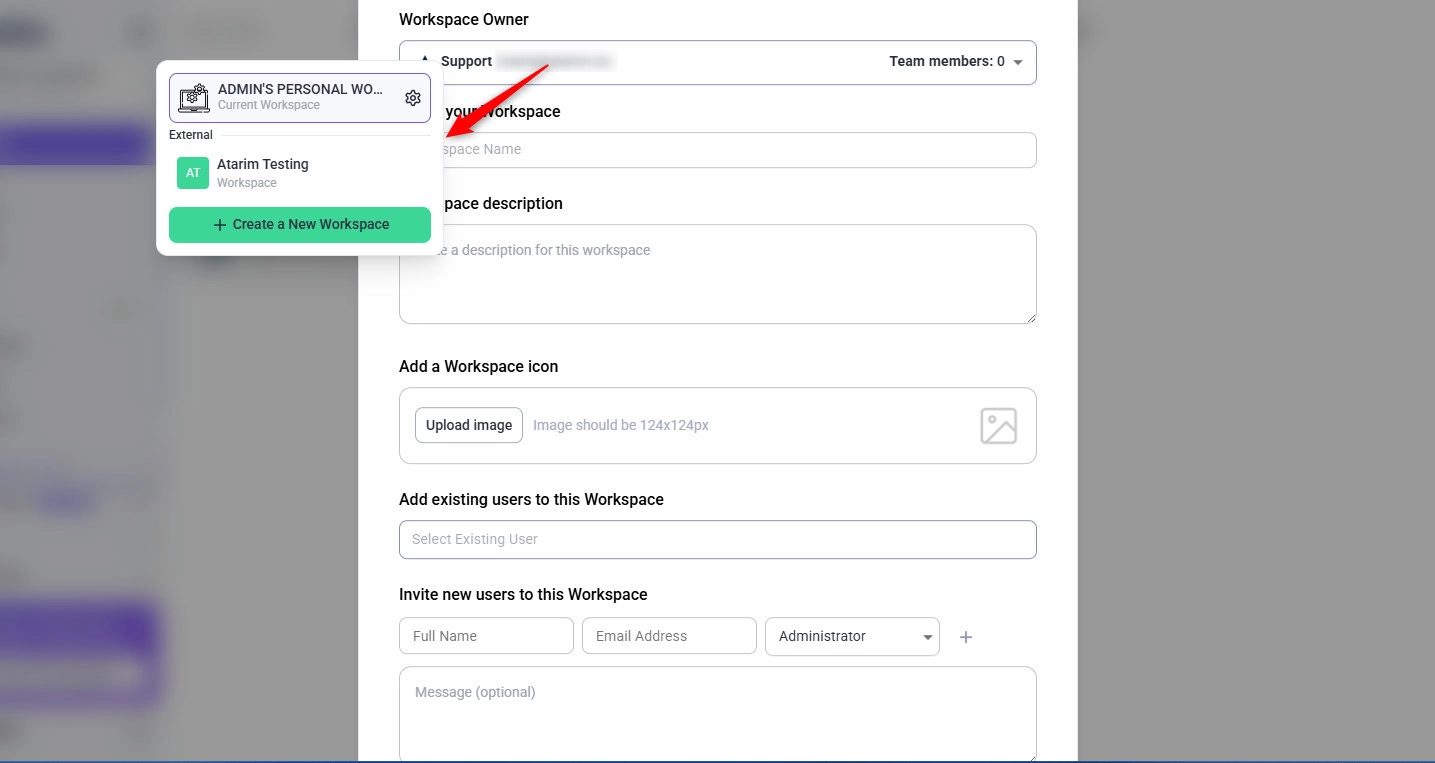
Tip: These labels help your team quickly understand the type of issue before opening the task.
Why Tasks Are Grouped by Section
Grouping tasks by section helps your team understand the exact part of the page each recommendation relates to.
For example, if InnerCircle finds several issues in the Hero Section, those tasks appear under the Hero Section group. If it finds SEO related issues, those may appear under SEO Metadata Analysis.
This helps your team:
- Review feedback by page section
- Understand where each issue appears
- Avoid missing related recommendations
- Prioritize fixes by area
- Assign tasks to the right team member
- Work through review results more efficiently
Tip: Each section can be expanded or collapsed so your team can focus on one area at a time.
Step 3: Clarify — Turn Vague Client Comments into Actionable Tasks
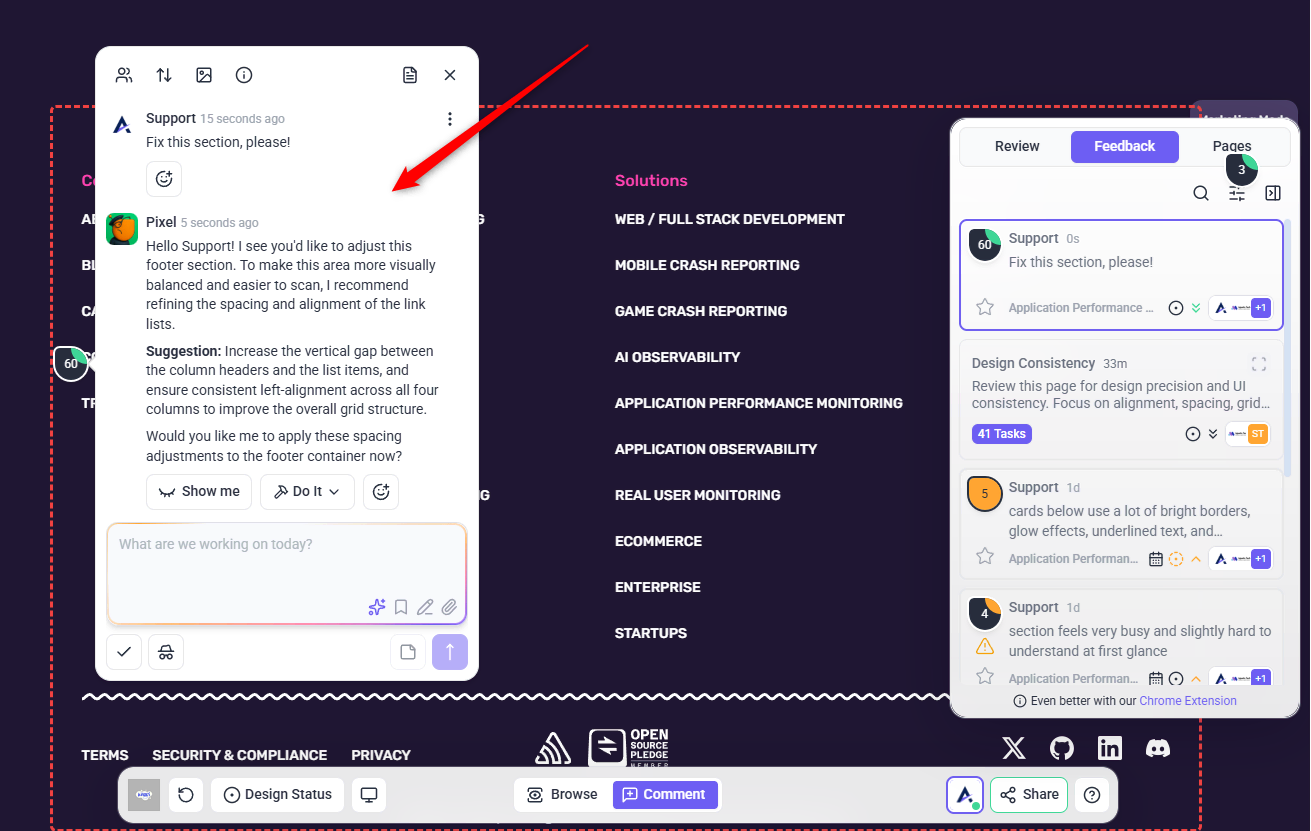
When vague comments like “Fix this section, please!” are left on the canvas, Atarim’s InnerCircle helps turn them into clearer, more actionable feedback.
Instead of leaving the team guessing what needs to be fixed, the relevant InnerCircle agent reviews the selected section and suggests a more specific direction based on the context of the page element. Learn More About How To Clarify Feedback Instantly with Claro
Note: This AI feature is meant for feedback givers – both team members and clients see Clarifications.
Instructions:
- Leave or receive a vague comment on the canvas.
- Claro will flag it and suggest specific rewrites, such as:
- “Add a subtle drop shadow”
- “Increase contrast between background and text”
- The InnerCircle reviews the selected section and provides a clearer, more actionable suggestion.
- Review the suggested clarification inside the task modal.
- Use the available options to continue:
- Show Me
- Use this to preview or better understand the suggested change.
- Do It
- Use this to apply or move forward with the recommended update.
- Show Me
- Continue the conversation if you want to refine the suggestion further.
Tip: Encourage clients to leave unfiltered thoughts—Claro will handle the translation into clear, aligned direction for your team. This greatly reduces miscommunication during reviews and speeds up revisions.
Step 4: Collaborate — Team Work Together
When feedback touches multiple domains — like design, copy, and accessibility — the Inner Circle agents work together behind the scenes to provide layered, comprehensive insights.
Example Workflow:
- A vague comment is left: “Fix this section.”
- Claro rewrites it into a detailed task.
- Pixel evaluates layout.
- Lexi refines messaging and copy.
- Navi checks color contrast and screen reader compatibility.
Tip: You don’t need to assign agents manually. Atarim intelligently routes each issue to the right agent(s) based on context.
Note: This real-time collaboration reduces back-and-forth and ensures no part of your project goes unchecked.
FAQs
No installation is required. Atarim AI is embedded directly into your canvas. However, to use the Atarim AI feature, the project must be accessed via the URL method. AI is not currently supported for image uploads, WordPress plugin canvases, or browser extensions.
Atarim AI includes six agents: Pixel focuses on design and layout, Lexi improves copy and tone, Index checks SEO and content structure, Navi ensures accessibility compliance, Claro rewrites vague feedback into clear tasks, and Glitch detects technical bugs.
Yes, before starting a review, you can toggle agents on or off depending on whether you want feedback on design, content, accessibility, SEO, or technical bugs.
AI feedback appears directly on the canvas as visual stickers and temporary task suggestions, allowing you to review and act on them in context.
Yes, the Claro agent detects unclear comments and rewrites them into specific, actionable tasks that are easier for your team to understand and implement.
Yes, all feedback and project data remain securely within your Atarim workspace and are not transmitted to external systems.
Yes, you can run an AI review multiple times, and the agents will analyze the latest version of your canvas each time to provide updated suggestions.
No, Atarim AI is designed to support your team by catching overlooked issues and translating vague input into clear tasks, but it does not replace human expertise.