
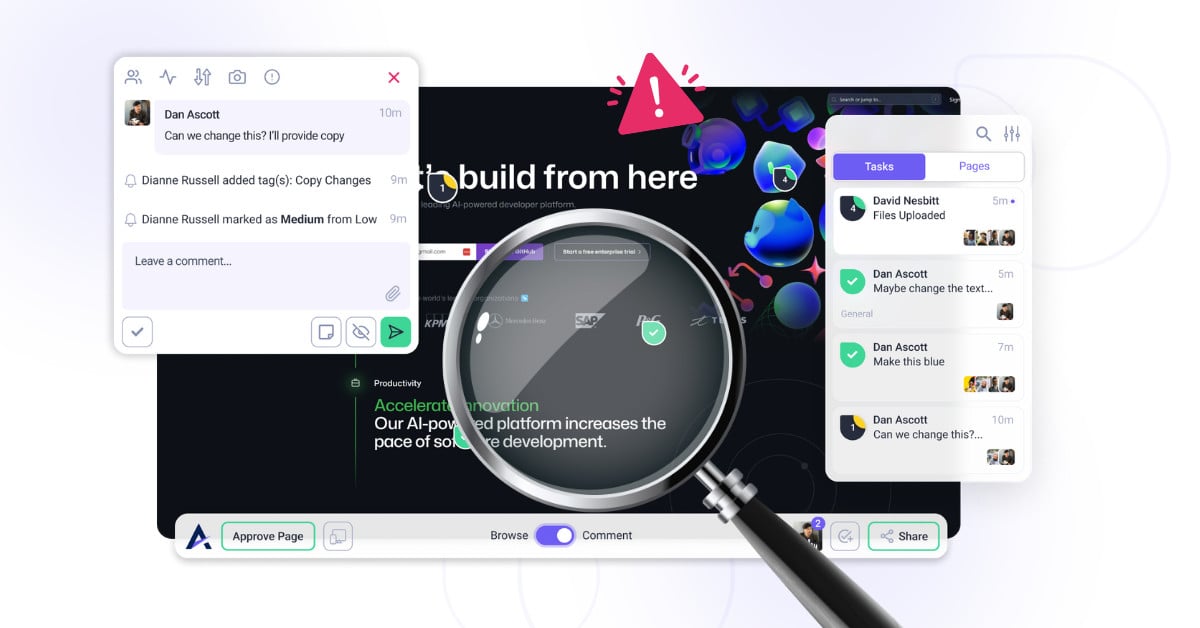
Below are some common issues users may experience in Atarim, along with possible causes and recommended solutions.
1. Unable to Log In
Symptom: You are unable to log in to your Atarim account.
Potential Causes:
- Unstable internet connection
- Incorrect login credentials
- Browser cache or cookie issues
Solution:
- Make sure your device is connected to a stable internet connection.
- Double-check that you are using the correct email address and password.
- Check for typos or extra spaces in your login details.
- If needed, reset your password by clicking Forgot Password on the login screen.
- Clear your browser cache and cookies, then try logging in again.
- Try opening Atarim in an incognito or private browsing window.
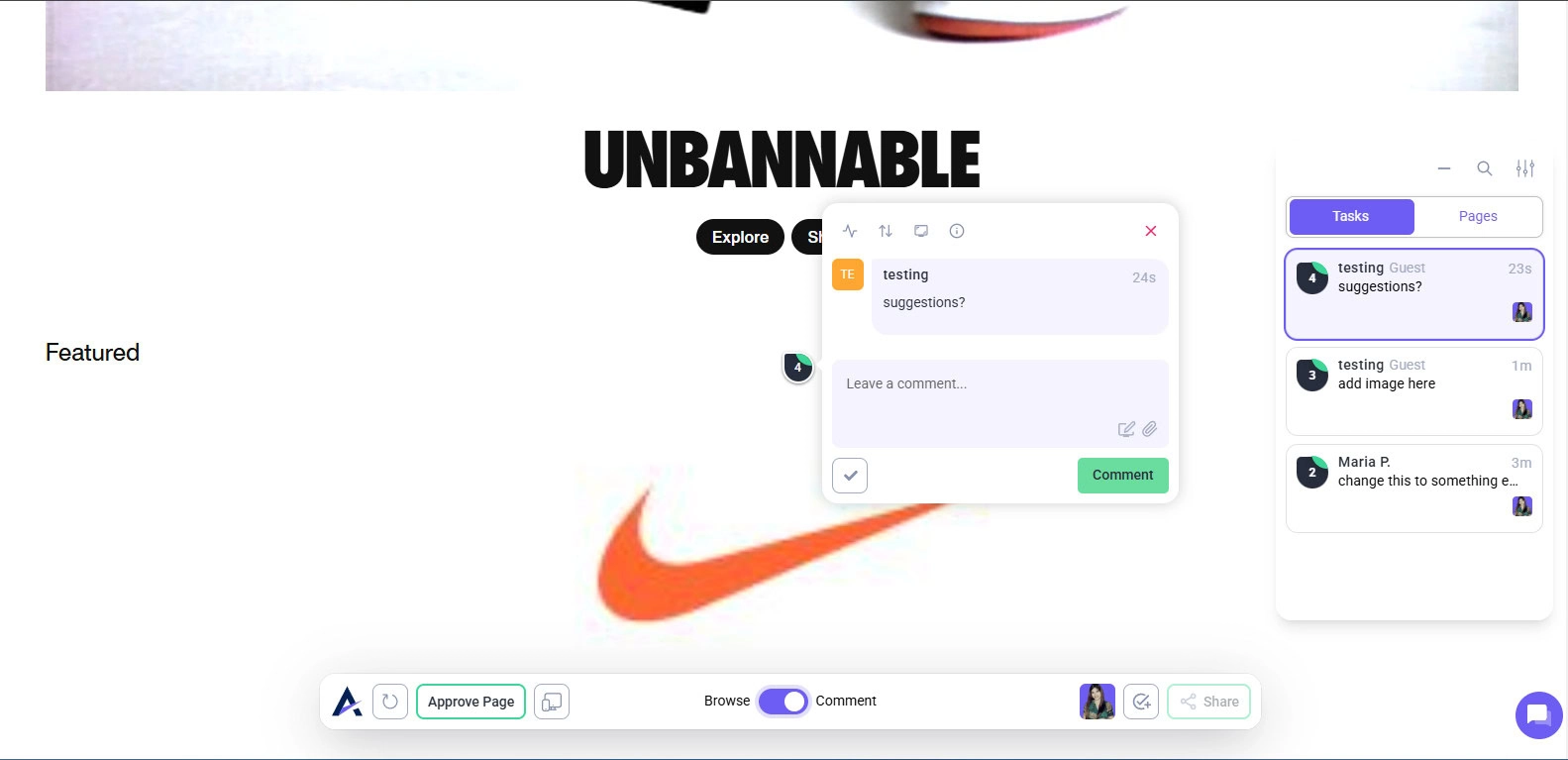
Note: If the problem continues, contact Atarim Support for further assistance.
2. Clients Not Receiving Invitations
Symptom: You sent a client an invitation to join a project, but they did not receive the email.
Potential Causes:
- The email address was entered incorrectly
- The invitation email went to the client’s spam or junk folder
- The invite may need to be resent
Solution:
- Go back to the project or people area where the invitation was sent.
- Confirm that the client’s email address was entered correctly.
- Ask the client to check their spam, junk, promotions, or other filtered folders.
- If the email address is correct and the invite cannot be found, resend the invitation.
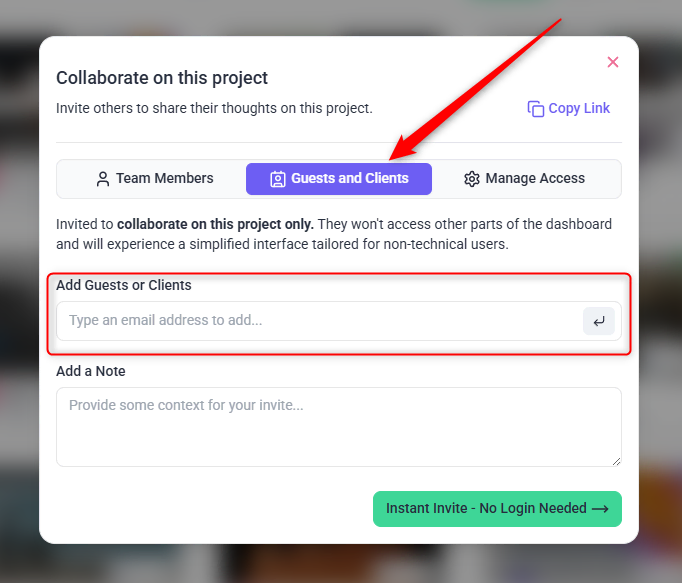
Note: If the issue persists, contact Atarim Support and include the client’s email address and the project they were invited to.
3. Tasks Not Updating
Symptom: You completed a task or made a change, but the update does not appear on the Kanban board or task list.
Potential Causes:
- Temporary syncing delay
- Browser cache issue
- The page needs to be refreshed
Solution:
- Refresh the page and check if the task status updates.
- Wait a few moments in case there is a short syncing delay.
- Clear your browser cache and reload the page.
- Try opening Atarim in another browser or incognito mode.

Note: If the task still does not update, contact Atarim Support and include the affected project, task link, and a screenshot or screen recording.
4. Unable to Upload Files or Media
Symptom: You are trying to upload a file or media attachment, but the upload fails, freezes, or does not complete.
Potential Causes:
- File size exceeds the allowed limit
- Unsupported file type
- Weak or unstable internet connection
- Browser upload issue
Solution:
- Check that the file size does not exceed the maximum upload limit allowed by Atarim.
- Confirm that the file is in a supported format, such as
.jpg,.png,.pdf, or other accepted file types. - Make sure your internet connection is stable.
- Try uploading the file again.
- If the upload still fails, try using a different browser or clearing your cache.
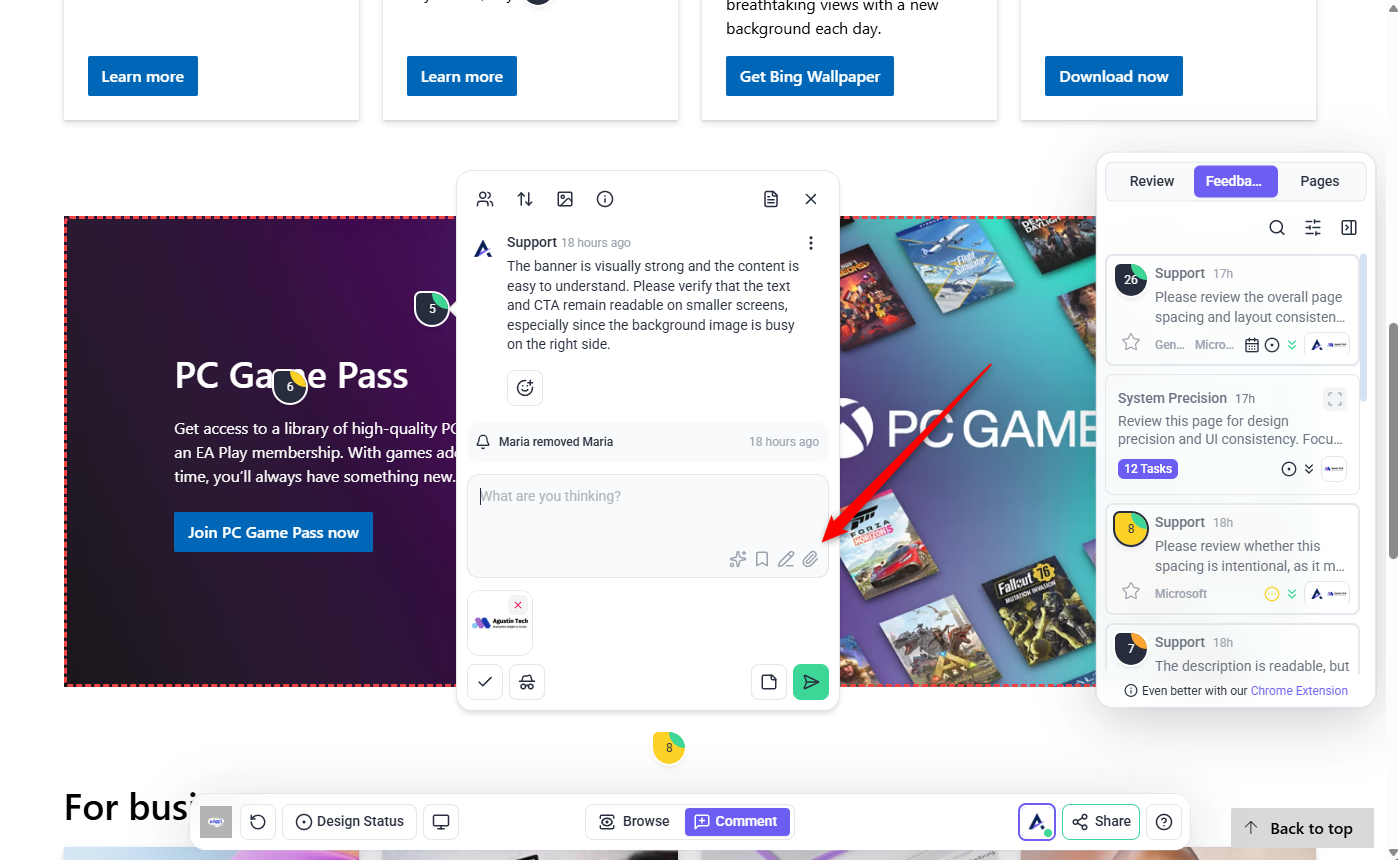
Note: If the issue continues, contact Atarim Support and include the file type, file size, and where you were trying to upload it.
5. Email Notifications Not Being Received
Symptom: You are not receiving email notifications for project updates, comments, or tasks.
Potential Causes:
- Email notifications are turned off in your settings
- Emails are going to spam or junk
- Your email provider is filtering Atarim notifications
Solution:
- Go to your Atarim profile or notification settings.
- Confirm that email notifications are enabled.
- Check your spam, junk, promotions, or filtered folders.
- Add Atarim’s notification email to your safe sender list or contacts.
- Ask your email administrator to allow Atarim emails if you are using a company email address.
Note: If notifications are still not arriving, contact Atarim Support and include your account email and examples of the notifications you expected to receive.
6. Slow Performance or Long Loading Times
Symptom: Pages inside Atarim are loading slowly or taking too long to respond.
Potential Causes:
- Browser cache or cookie issues
- Slow or unstable internet connection
- Browser-specific performance issue
- Temporary platform or server load
Solution:
- Clear your browser cache and cookies.
- Refresh the page and try again.
- Make sure your internet connection is stable.
- Try using a different browser.
- Update your browser to the latest version.
- Disable browser extensions temporarily, especially ad blockers or security extensions.

Note: If performance does not improve, contact Atarim Support with your browser, device, affected page, and a short screen recording if possible.
7. Unable to Create a Task in Collaborate
Symptom: You are trying to leave feedback or create a task in Collaborate, but the task is not being added.
Potential Cause:
Atarim has two modes inside the collaboration view: Browse and Comment. To create tasks or leave visual feedback, the page must first be loaded in Browse mode, then switched to Comment mode.
When to Use Browse
Use Browse when you need to open, move around, or navigate between pages inside Atarim. This allows the page to load correctly and keeps the collaboration session active.
What Comment Is For
Use Comment when you are ready to leave visual feedback, create tasks, and pin comments to specific elements on the page.
Solution:
- Click Browse.
- Navigate to the page you want to review inside Atarim.
- Once the page has loaded, click Comment.
- Click anywhere on the page to leave feedback or create a task.
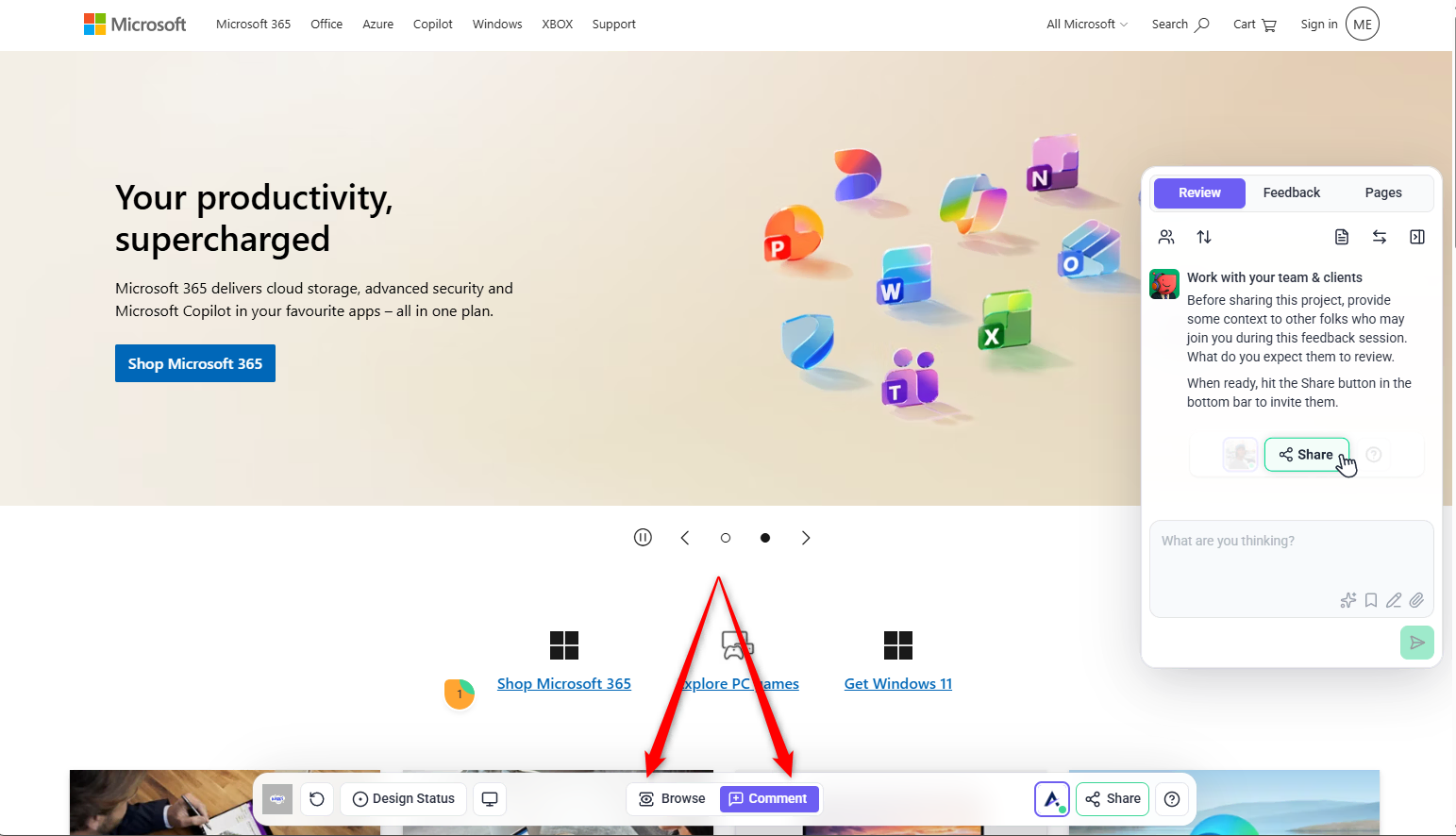
Tip: You must activate Comment mode before leaving feedback. If you are still in Browse mode, comments and tasks cannot be added or saved.
Note: If the issue continues after switching to Comment mode, contact Atarim Support and include the affected collaboration link, browser, and a screenshot or recording of the issue.