Push designs from Figma into Atarim to streamline collaboration, feedback, and version control — all in one centralized workspace.
The Atarim Figma Plugin allows you to push design frames directly from Figma into Atarim — where feedback is centralized, actionable, and trackable.
Instead of juggling scattered Figma comments or duplicating frames to track versions, this plugin transforms design collaboration into a structured workflow that fits naturally into your existing Atarim environment.
Relevant For
UX/UI Designers
Design Leads
Project Managers
Product Managers
Frontend Developers
Clients and Stakeholders
Prerequisites
Familiarity with Figma & Awareness of how Atarim projects and design feedback works
Figma account
Active Atarim workspace
Atarim plugin installed in Figma
Access to a design file
Why Use Atarim Instead of Native Figma Comments?
Figma comments are great for lightweight collaboration — but once projects grow, stakeholders multiply, or feedback needs tracking, they fall short. That’s where the Atarim Figma Plugin comes in. Atarim gives you the structure, visibility, and control that native Figma comments can’t — especially when clients, devs, and cross-functional teams are involved.
1. Deeper Collaboration Tools
Native Figma comments are great for quick notes — but they stop there.
With Atarim, you unlock:
Task statuses (Open, In Progress, Review, Completed)
Priority levels (Low, Medium, High, Critical)
Task assignments
Internal-only notes (hidden from clients)
Integrations with tools like Jira, ClickUp, and Slack
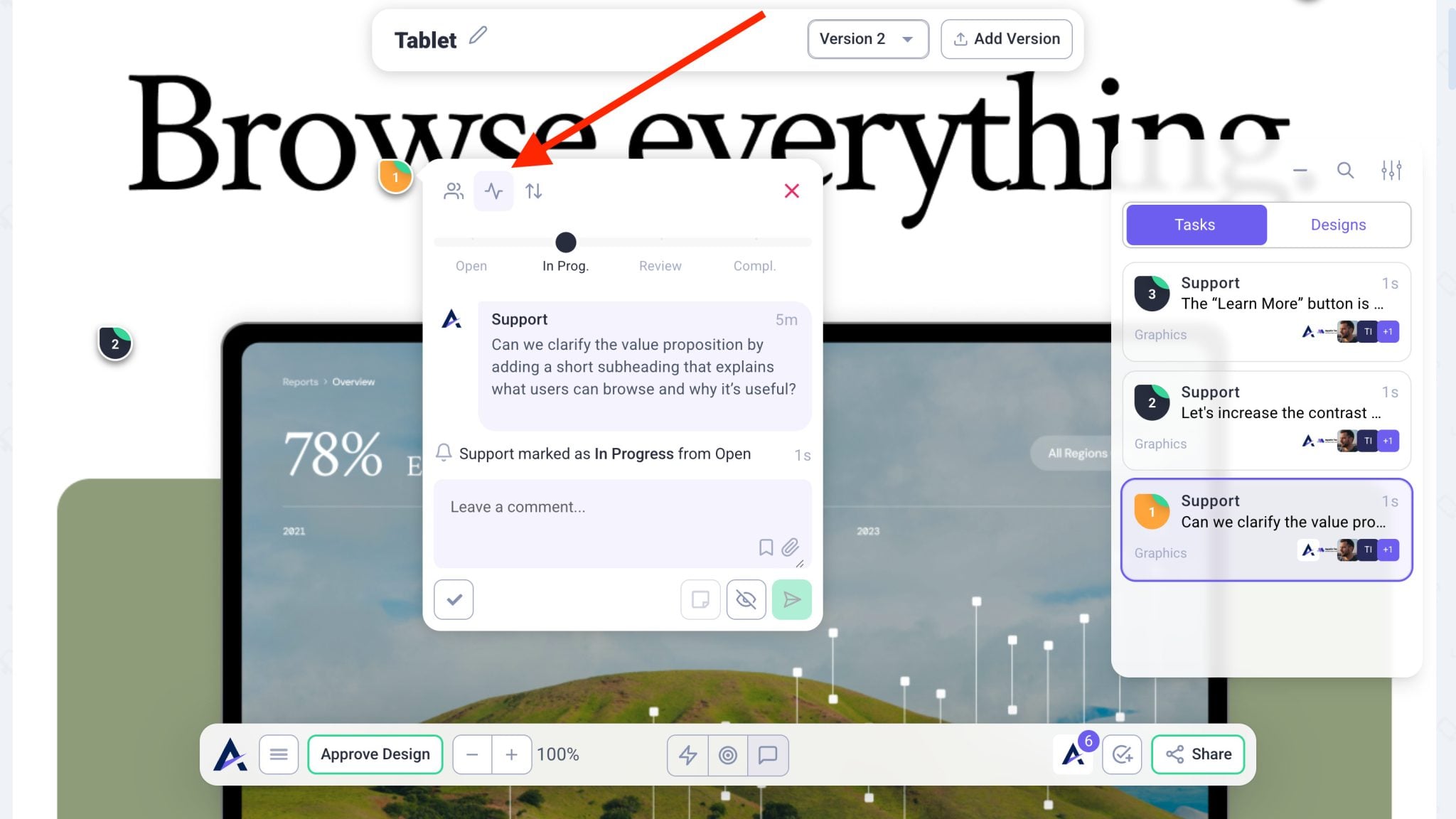
Our tool turns feedback into actionable work, not forgotten comments.
Updating a Task’s Status
Warning: Avoid relying solely on Figma comments — they can get buried or forgotten.
2. Centralized Communication
Figma comments live only inside a single file.
Atarim centralizes:
All design feedback
Tasks across multiple projects
Inbox and board views for execution tracking
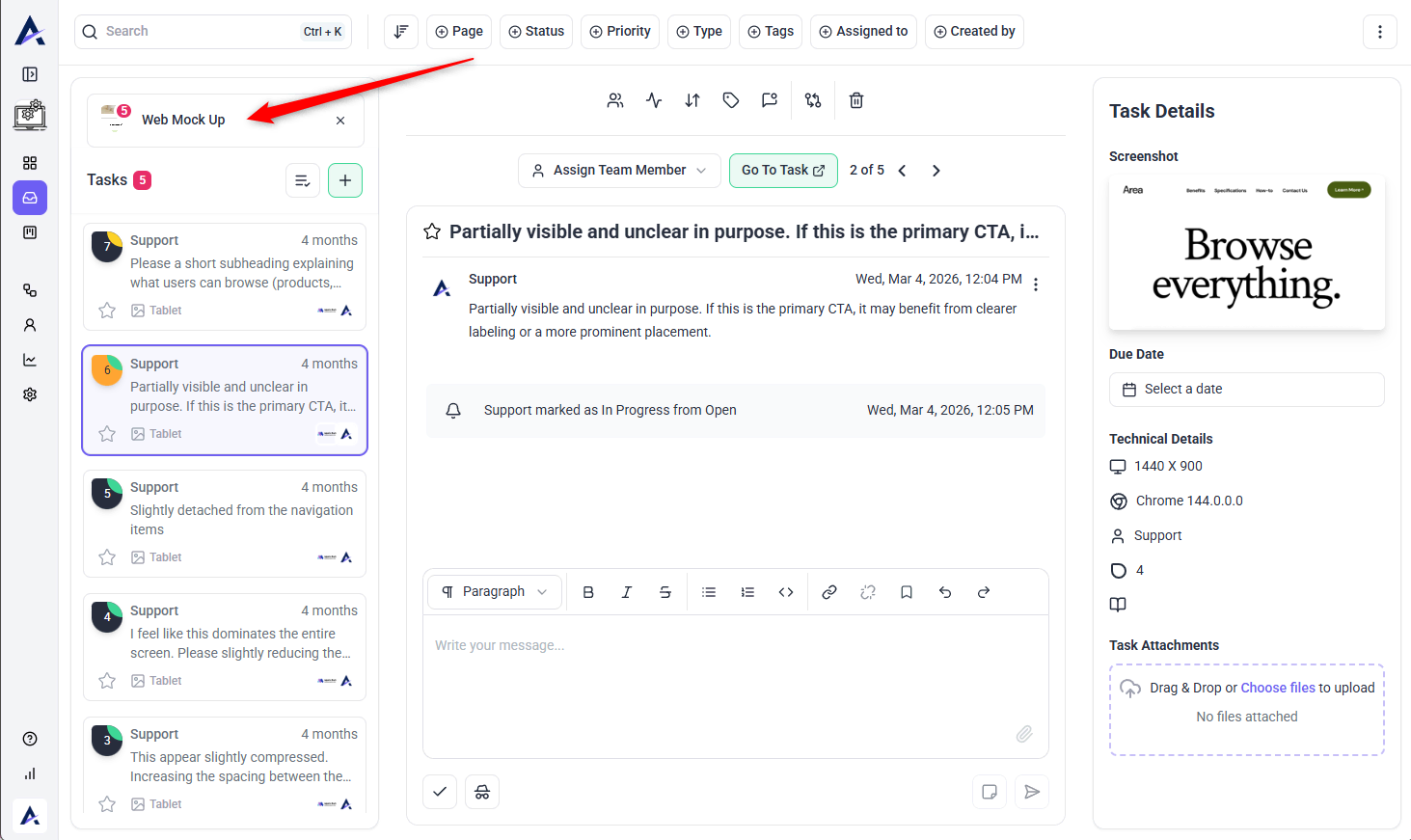
This prevents feedback from falling through the cracks and eliminates the need to jump between files just to find comments.
Managing Design Feedback from a Single Inbox
Note: Atarim’s Inbox and Boards let you see all tasks, from any design or website — even across workspaces.
3. Version Control
Version tracking in Figma can quickly become messy.
With the Atarim Figma Plugin:
Every push can be saved as a new version
You can track how many revisions a design went through
Stakeholders clearly see progress over time
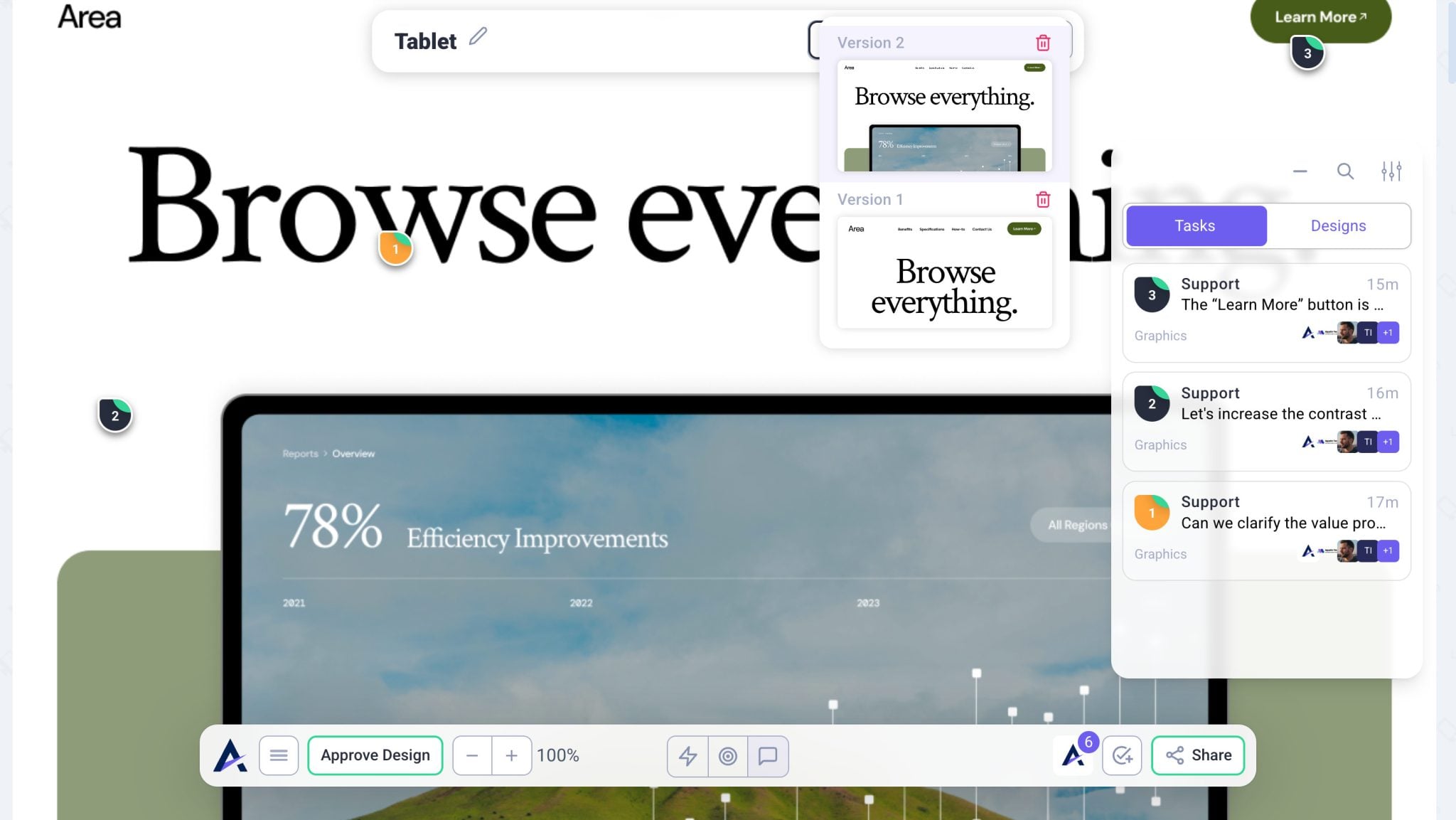
This creates transparency and helps manage endless revision cycles.
Version Control for Design Feedback
Tip: Push a new version after each major revision round to maintain a clean version history.
How to Install the Atarim Figma Plugin
Learn how to install and launch the Atarim Figma Plugin so you can send designs directly into your Atarim workspace for fast, visual feedback and collaboration. This will walk you through accessing the plugin from inside your Figma file and getting started in just a few clicks.
Step 1: Open the Plugins Menu
Instructions:
Right-click anywhere inside your Figma canvas
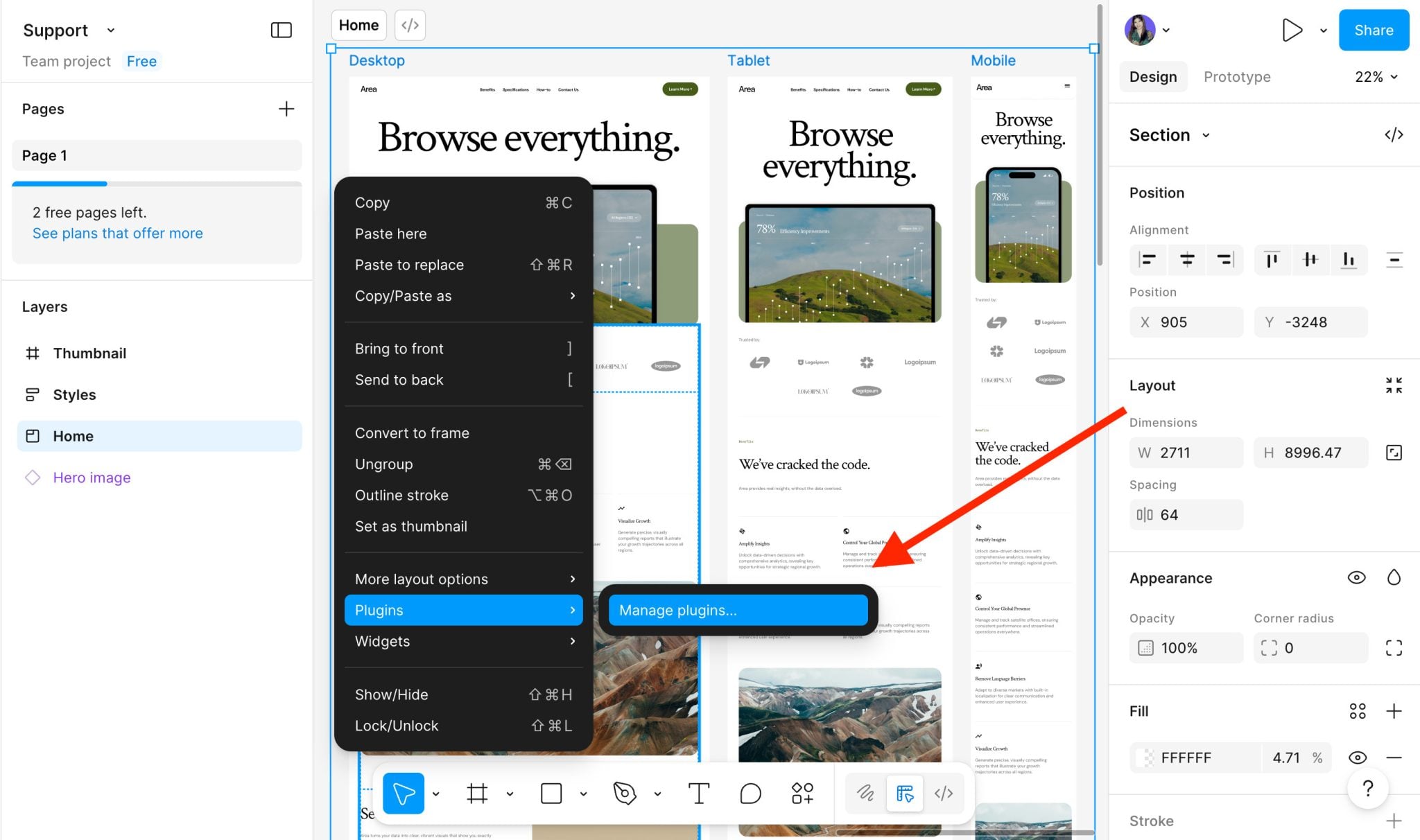
Select Plugins
Open Plugins Menu
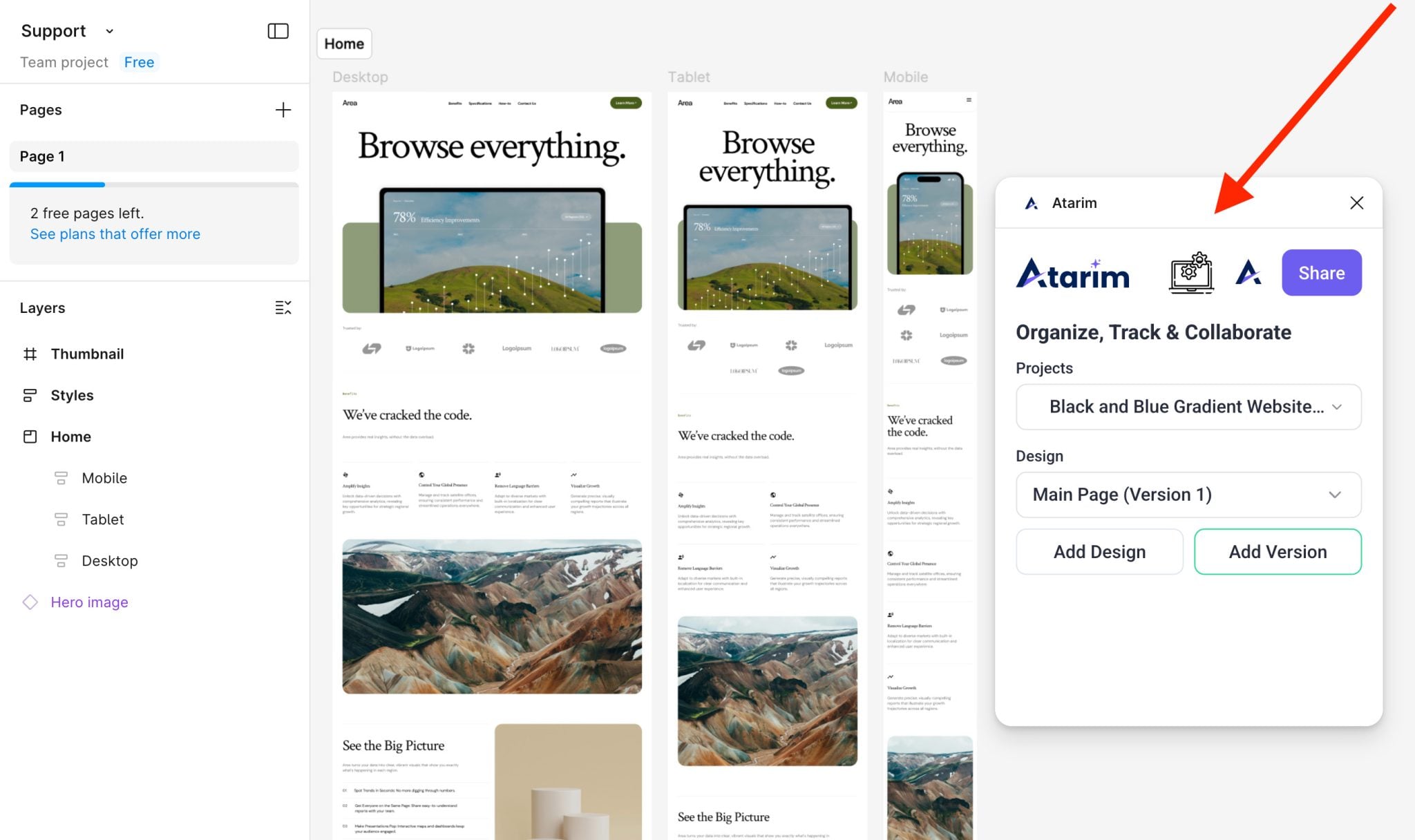
Step 2: Install the Plugin (First-Time Only)
Instructions:
Select Manage Plugins
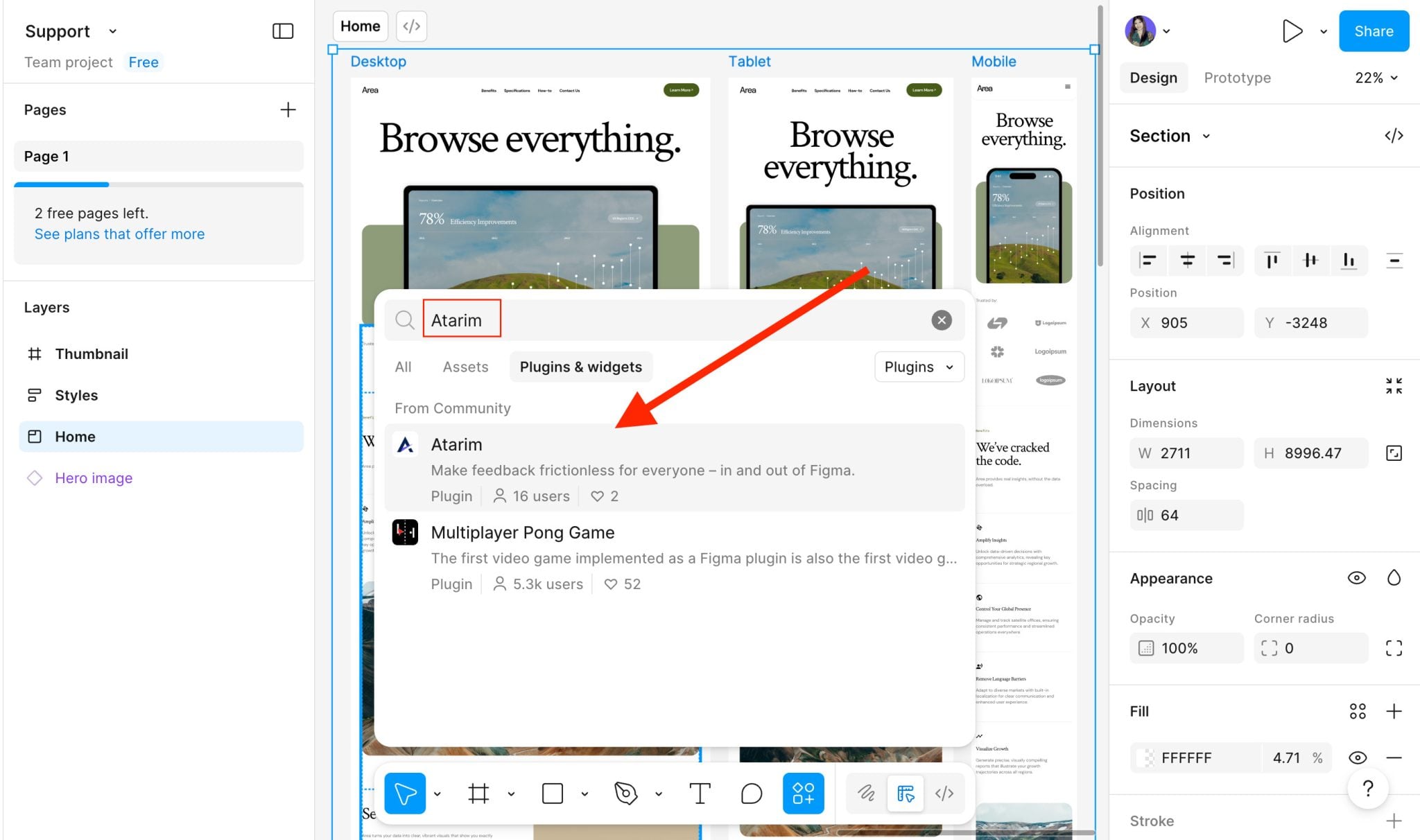
Search for Atarim
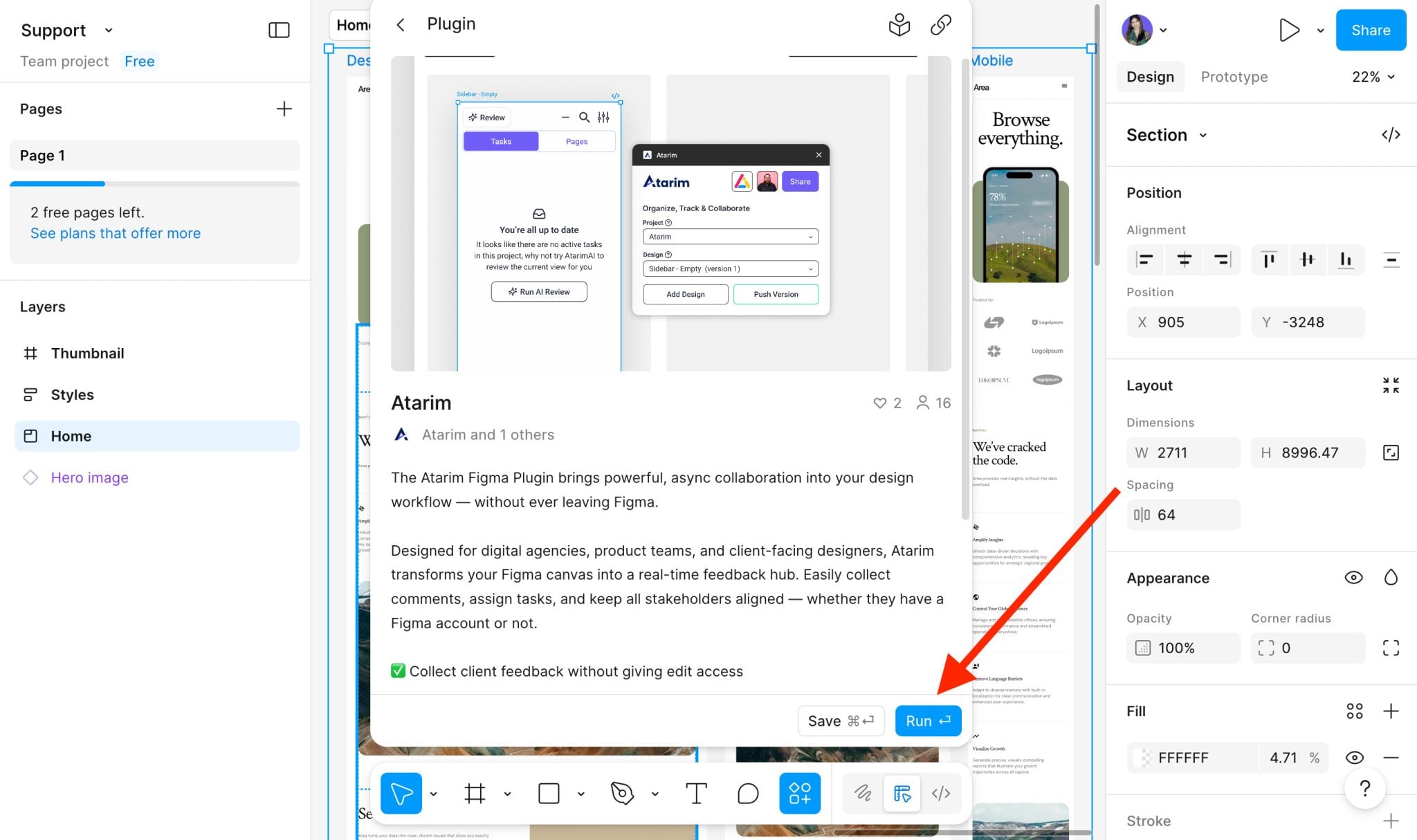
Click Run to install
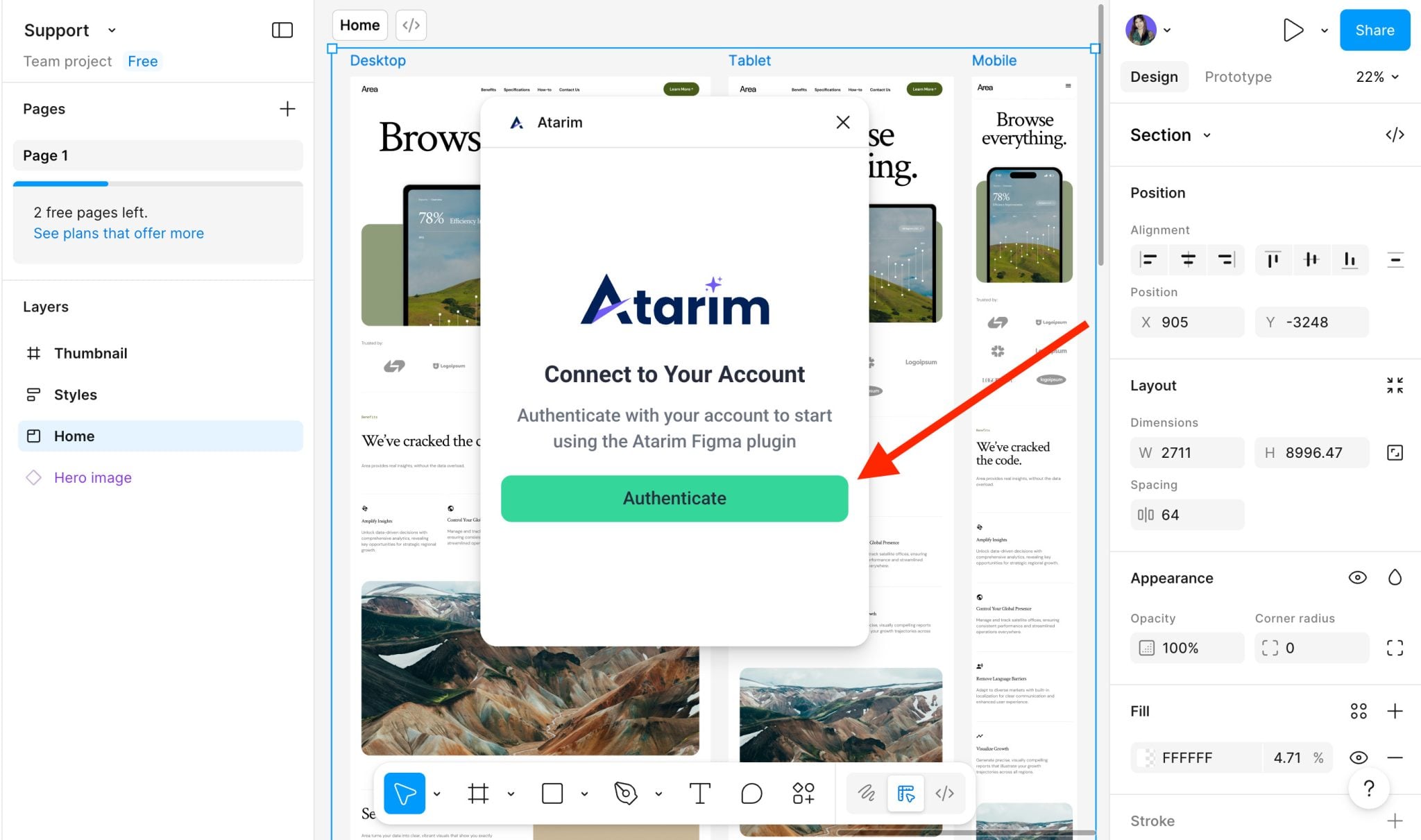
Click Authenticate
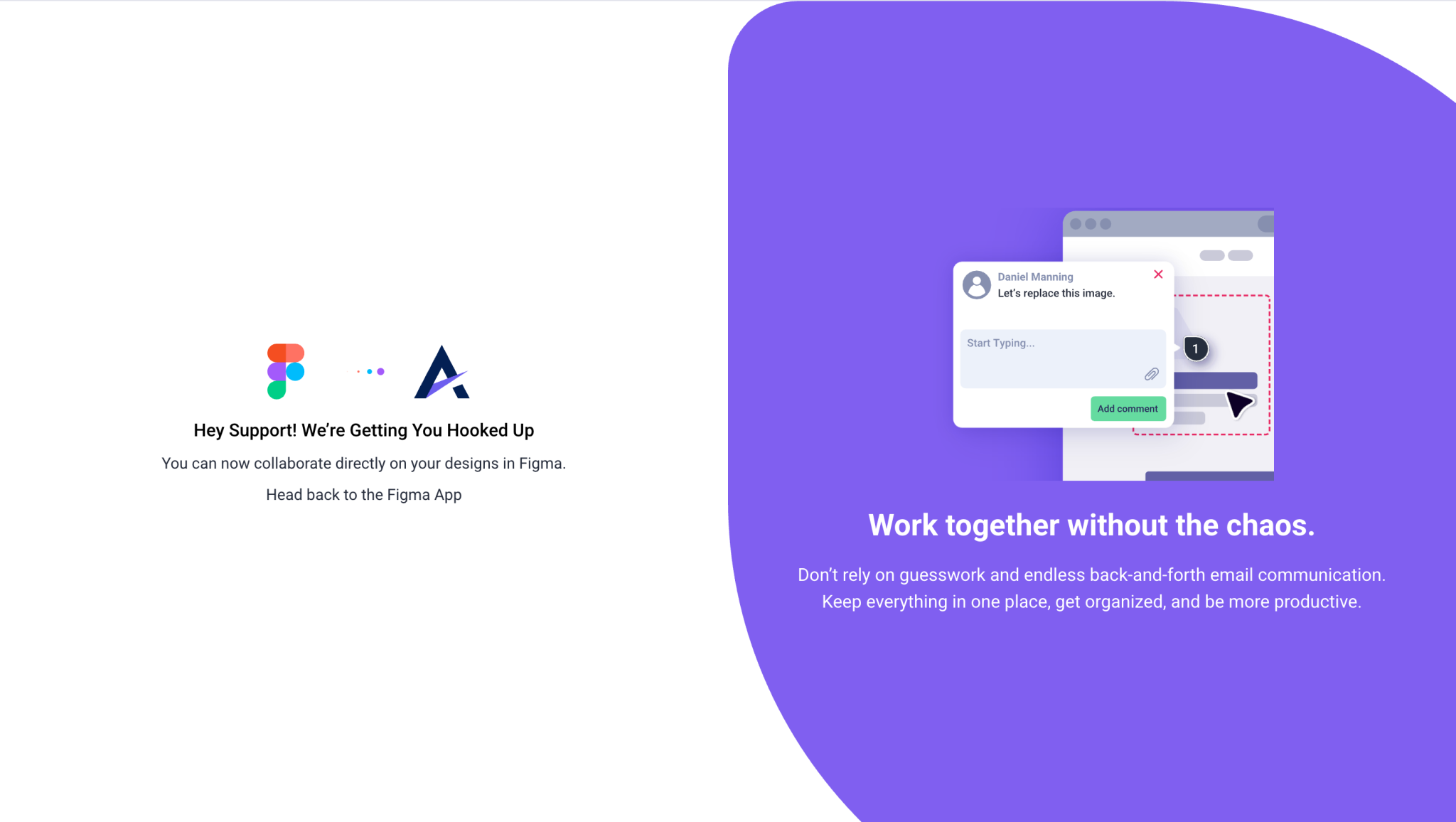
Return to the Figma app
Search for AtarimClick Run to installAuthenticate your accountAuthentication Complete
Tip: You only need to install the plugin once. After installation, it will be available in all your Figma files.
Step 3: Launch the Plugin
Instructions:
Right-click on the canvas again
Go to Plugins → Atarim
Atarim Figma Plugin
Note: The plugin will open and automatically connect to your Atarim workspace if you’re logged in
How to Push Designs from Figma into Atarim
Easily send your Figma designs into Atarim for visual feedback and collaboration with your team or clients. This guide explains how to select frames or entire canvases and push them into your workspace in just a few clicks — no exporting or slicing needed.
Step 1: Select Frames
Instructions:
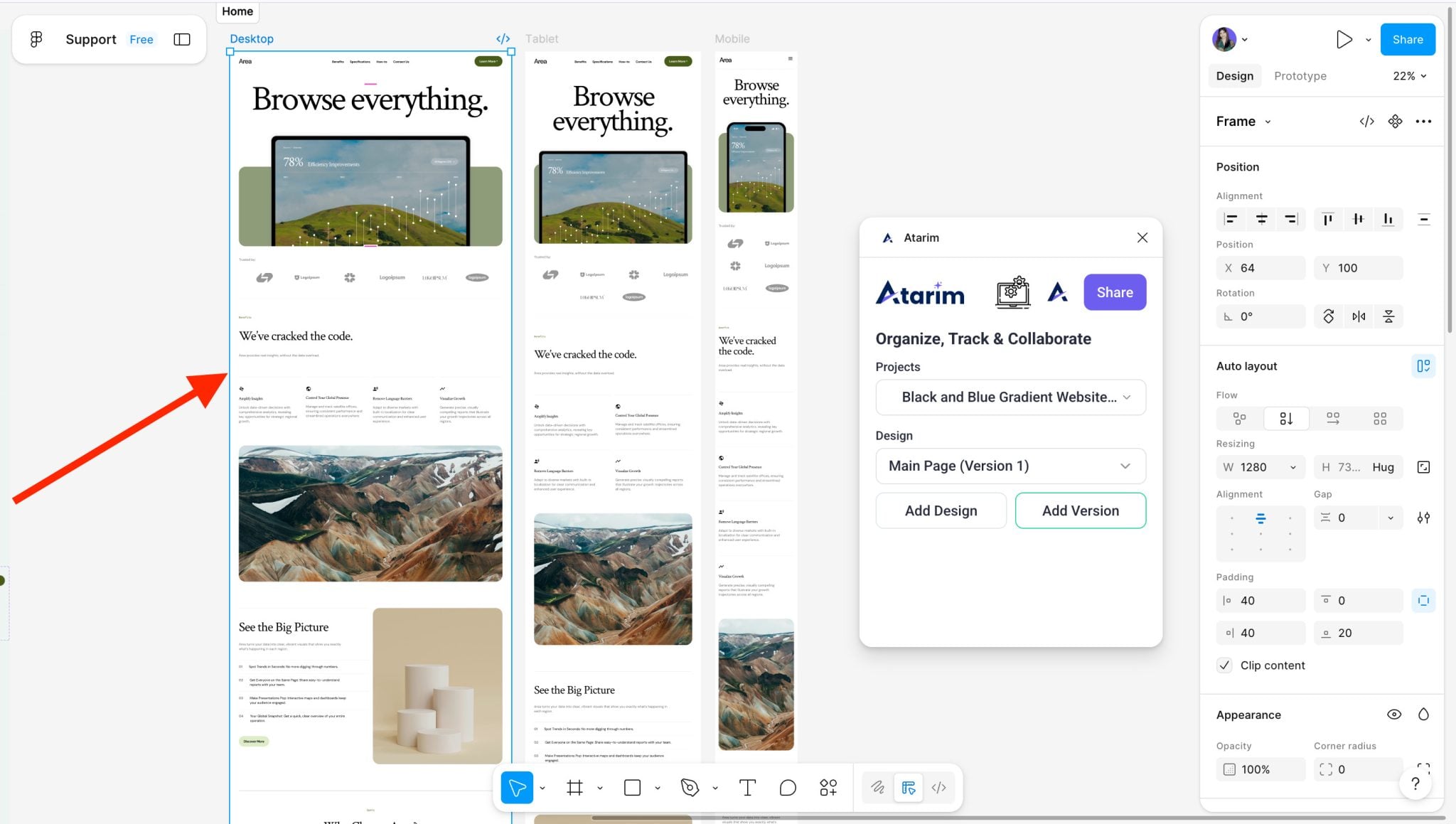
Select a specific frame to push one design
Select nothing to push the entire canvas as one page
Selecting Frames to Push
Tip: Selecting individual frames makes feedback more organized and reduces client confusion.
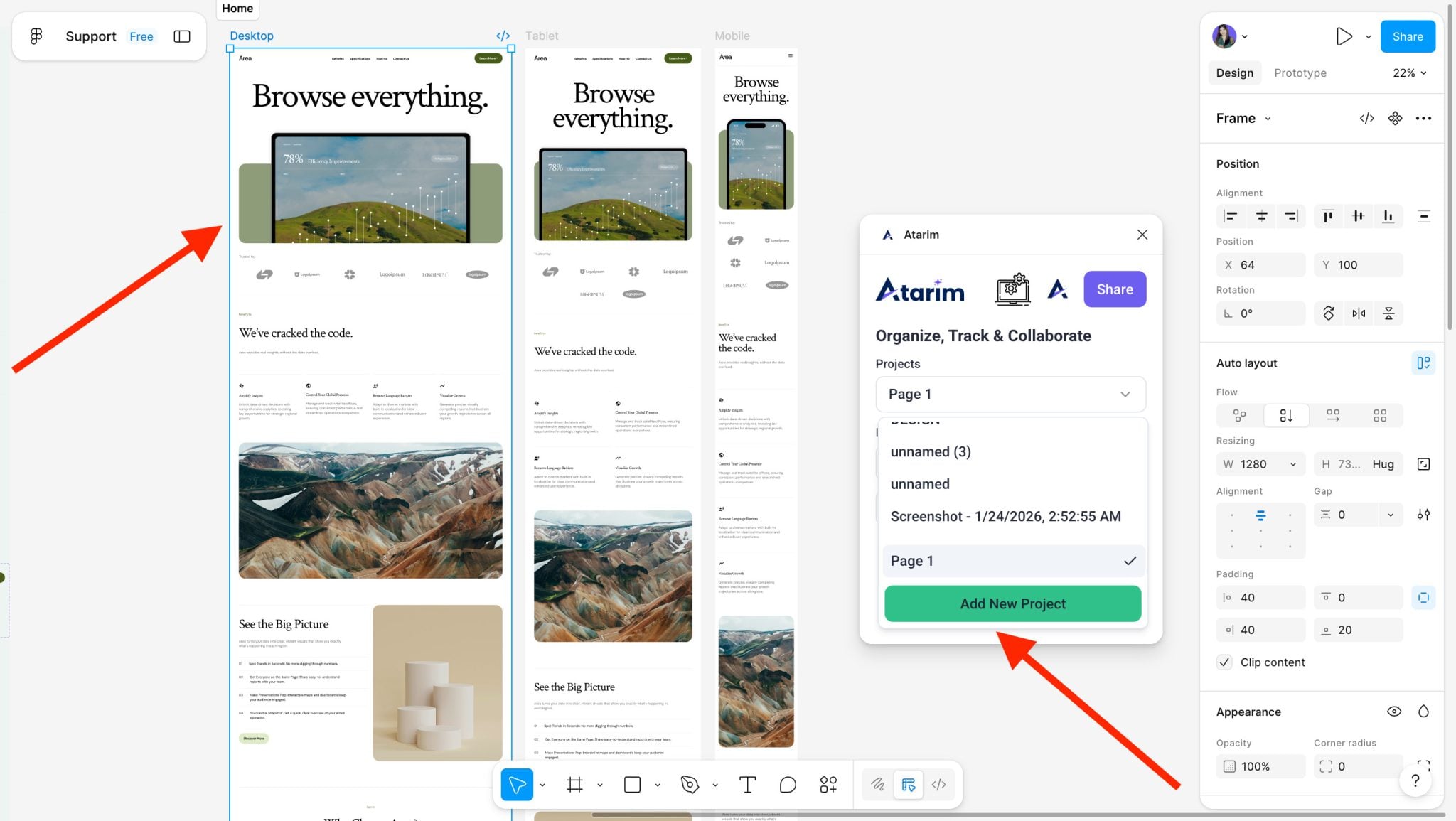
Step 2: Create a New Project
Instructions:
Open the Atarim Plugin
Click Add New Project
The project name will automatically match your Figma design (you can rename it later)
Create a New Project
Note: This creates a graphics project inside Atarim, not a web project.
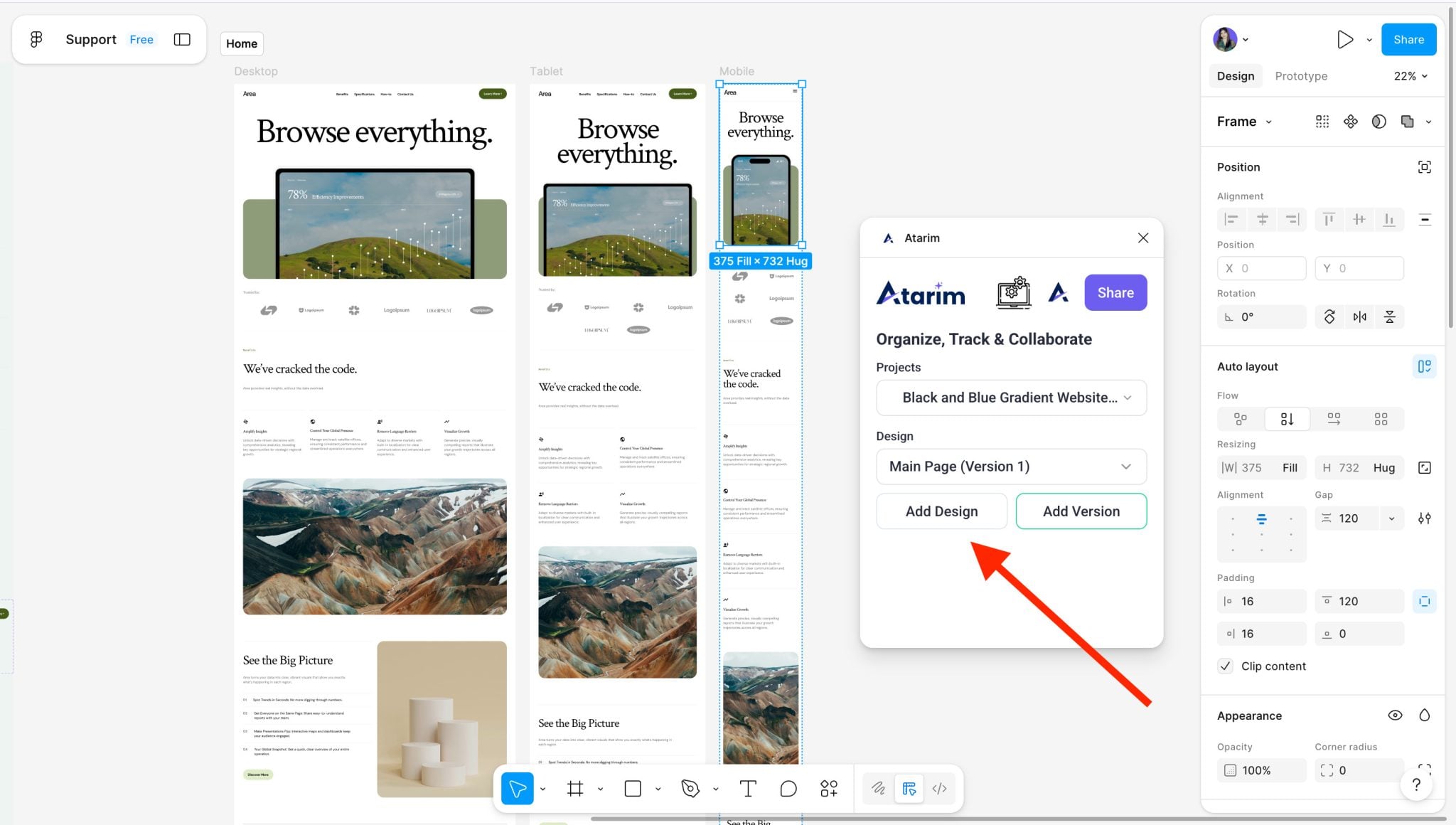
Step 3: Add Designs to Pages
Instructions:
Select a frame
Choose or create a Page
Click Add Design
Repeat for each relevant frame
Add Design to a Page
Warning: Avoid adding unrelated frames to the same page — this makes feedback harder to manage.
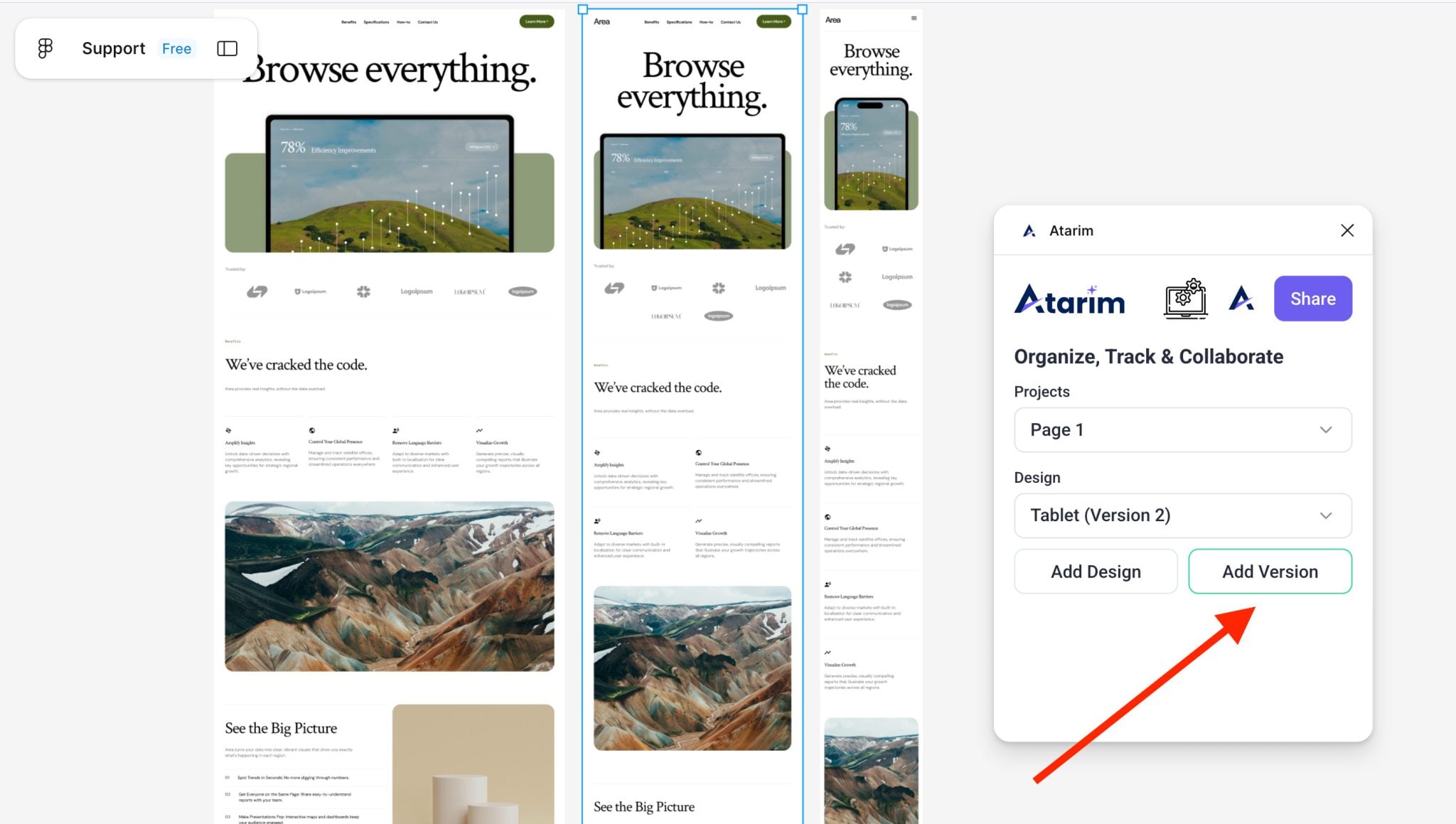
Step 4: Add New Versions
When your design changes:
Select the new frame
Click Add Version
Choose the corresponding page
Add New Versions
Tip: Use versioning at key checkpoints — before sending to clients or developers.
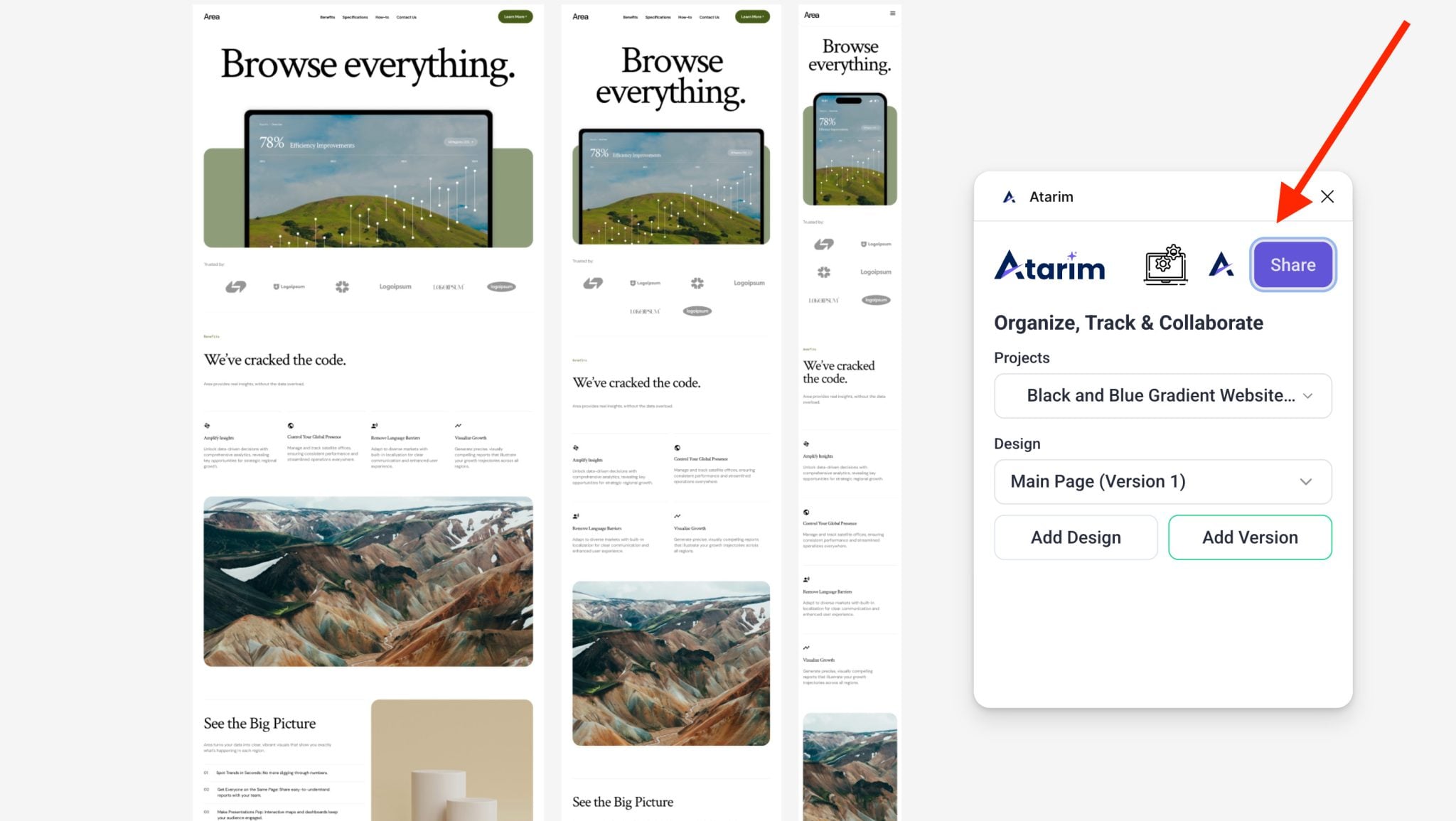
Step 5: Share the Project
Instructions:
Click Share in the plugin or Atarim project view
Invite teammates or clients
Viewers can comment and collaborate without Figma access
Share the ProjectShare the project to open it directly in Atarim
Tip: Use the “Copy Link” option to drop feedback links into Slack or project tools.
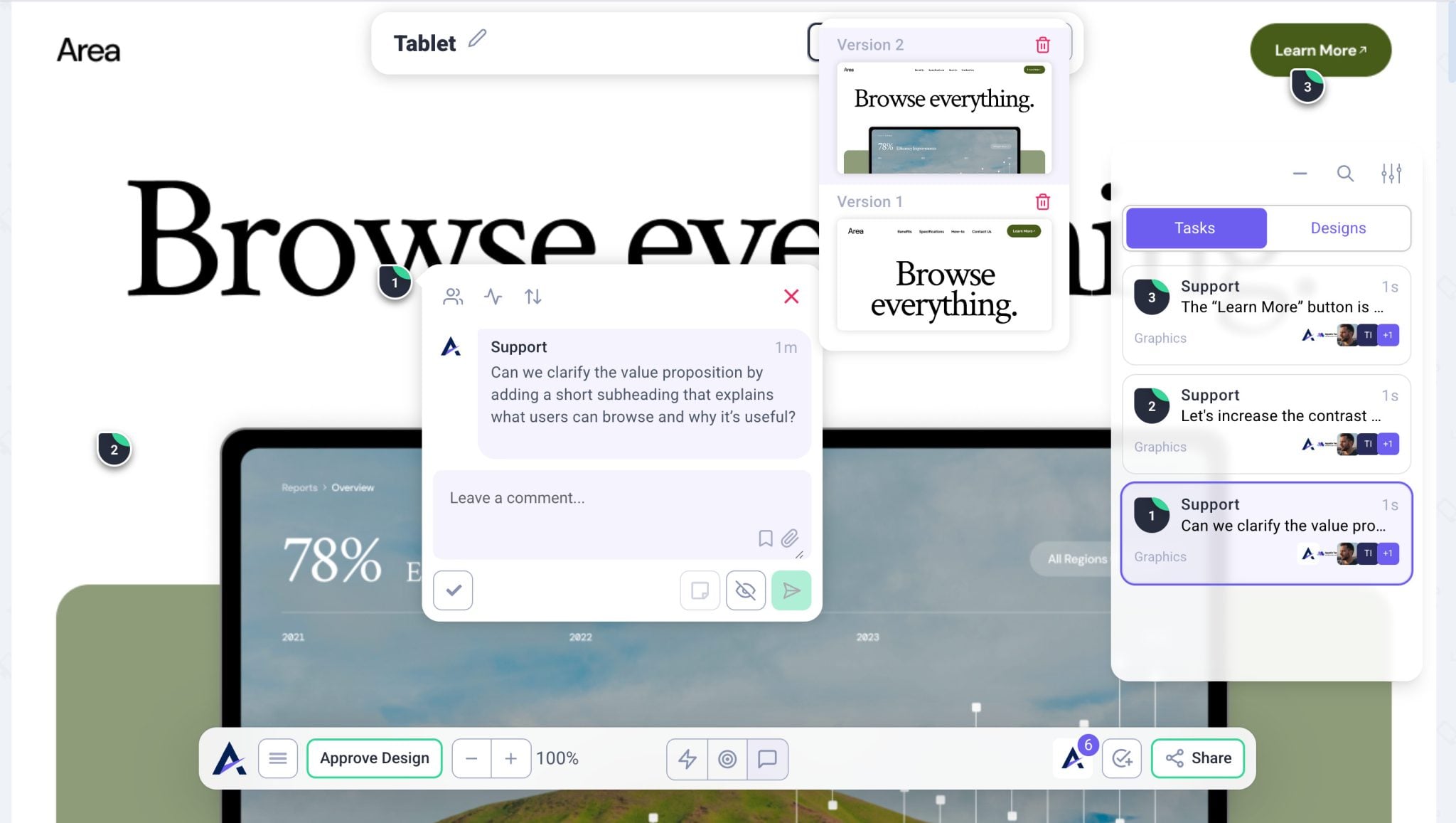
Understanding the Rebuilt Graphics Collaboration View
Designs are displayed top-to-bottom, not scattered across pages.
Benefits:
Clear feedback flow
No aimless canvas navigation
Precise comments per design element
Easy version switching
Recommendation: This layout is ideal for client reviews and structured feedback sessions.
FAQs
Can clients comment without a Figma account?
Yes — they use Atarim only. No Figma login is needed.
Do I lose anything when I push to Atarim?
No. All Figma design fidelity is retained. Comments are layered on top in Atarim.
Can I push to an existing Atarim project?
Yes — select the existing project in the plugin before adding frames.
What happens if I update a frame but don’t push a new version?
Atarim won’t track the update unless you explicitly push it as a new version. For full version history, always use “Add Version” in the plugin.
Can clients see version history?
Yes — when they view a design in Atarim, they can switch between versions using the version selector on the design page.
Tips & Tricks
Use internal-only tasks for design team notes before sharing with clients
Push only selected frames to ensure organized feedback
Use version history to limit revision loops
Prioritize design feedback to help dev teams act faster
Summary
The Atarim Figma Plugin helps design teams push beyond comments by turning feedback into clear, structured tasks — with built-in versioning and centralized review.
If you’re managing ongoing design iterations, client sign-offs, or developer handoffs — this plugin keeps everything aligned in one place.
[helpful]
On This Page
Add a header to begin generating the table of contents
We use cookies on our website to give you the most relevant experience by remembering your preferences and repeat visits. By clicking “Accept All”, you consent to the use of ALL the cookies. However, you may visit "Cookie Settings" to provide a controlled consent.
This website uses cookies to improve your experience while you navigate through the website. Out of these, the cookies that are categorized as necessary are stored on your browser as they are essential for the working of basic functionalities of the website. We also use third-party cookies that help us analyze and understand how you use this website. These cookies will be stored in your browser only with your consent. You also have the option to opt-out of these cookies. But opting out of some of these cookies may affect your browsing experience.
Necessary cookies are absolutely essential for the website to function properly. These cookies ensure basic functionalities and security features of the website, anonymously.
Cookie
Duration
Description
__stripe_mid
1 year
This cookie is set by Stripe payment gateway. This cookie is used to enable payment on the website without storing any patment information on a server.
__stripe_sid
30 minutes
This cookie is set by Stripe payment gateway. This cookie is used to enable payment on the website without storing any patment information on a server.
cookielawinfo-checkbox-advertisement
1 year
The cookie is set by GDPR cookie consent to record the user consent for the cookies in the category "Advertisement".
cookielawinfo-checkbox-analytics
11 months
This cookie is set by GDPR Cookie Consent plugin. The cookie is used to store the user consent for the cookies in the category "Analytics".
cookielawinfo-checkbox-functional
11 months
The cookie is set by GDPR cookie consent to record the user consent for the cookies in the category "Functional".
cookielawinfo-checkbox-necessary
11 months
This cookie is set by GDPR Cookie Consent plugin. The cookies is used to store the user consent for the cookies in the category "Necessary".
cookielawinfo-checkbox-others
11 months
This cookie is set by GDPR Cookie Consent plugin. The cookie is used to store the user consent for the cookies in the category "Other.
cookielawinfo-checkbox-performance
11 months
This cookie is set by GDPR Cookie Consent plugin. The cookie is used to store the user consent for the cookies in the category "Performance".
elementor
never
This cookie is used by the website's WordPress theme. It allows the website owner to implement or change the website's content in real-time.
PHPSESSID
session
This cookie is native to PHP applications. The cookie is used to store and identify a users' unique session ID for the purpose of managing user session on the website. The cookie is a session cookies and is deleted when all the browser windows are closed.
viewed_cookie_policy
11 months
The cookie is set by the GDPR Cookie Consent plugin and is used to store whether or not user has consented to the use of cookies. It does not store any personal data.
wordpress_test_cookie
session
This cookie is used to check if the cookies are enabled on the users' browser.
Functional cookies help to perform certain functionalities like sharing the content of the website on social media platforms, collect feedbacks, and other third-party features.
Cookie
Duration
Description
aka_debug
session
This cookie is set by the provider Vimeo.This cookie is essential for the website to play video functionality. The cookie collects statistical information like how many times the video is displayed and what settings are used for playback.
bp_user-registered
13 years 8 months 8 days
This cookie is used to set which users can access the private pages of the website. It is a functional cookie.
bp_user-role
13 years 8 months 8 days
This is a functional cookie. It is used to set restriction to the user on acessing certain pages like back office, account page etc.
bp_ut_session
13 years 8 months 8 days
This is a functional cookie. This cookie is used to set restriction to the user on acessing certain pages like back office, account page etc.
player
1 year
This cookie is used by Vimeo. This cookie is used to save the user's preferences when playing embedded videos from Vimeo.
Performance cookies are used to understand and analyze the key performance indexes of the website which helps in delivering a better user experience for the visitors.
Cookie
Duration
Description
_fs
16 years 4 months 18 days 5 hours 26 minutes
This cookie is provided by Google Tag Manager. This cookie is used for collecting information on user preferences and the behaviour with web campaign content. This is used by website owners for promoting products and events.
Analytical cookies are used to understand how visitors interact with the website. These cookies help provide information on metrics the number of visitors, bounce rate, traffic source, etc.
Cookie
Duration
Description
_ga
2 years
This cookie is installed by Google Analytics. The cookie is used to calculate visitor, session, campaign data and keep track of site usage for the site's analytics report. The cookies store information anonymously and assign a randomly generated number to identify unique visitors.
_gat_gtag_UA_187048114_1
1 minute
This cookie is set by Google and is used to distinguish users.
_gid
1 day
This cookie is installed by Google Analytics. The cookie is used to store information of how visitors use a website and helps in creating an analytics report of how the website is doing. The data collected including the number visitors, the source where they have come from, and the pages visted in an anonymous form.
_hjAbsoluteSessionInProgress
30 minutes
No description available.
_hjFirstSeen
30 minutes
This is set by Hotjar to identify a new user’s first session. It stores a true/false value, indicating whether this was the first time Hotjar saw this user. It is used by Recording filters to identify new user sessions.
_hjid
1 year
This cookie is set by Hotjar. This cookie is set when the customer first lands on a page with the Hotjar script. It is used to persist the random user ID, unique to that site on the browser. This ensures that behavior in subsequent visits to the same site will be attributed to the same user ID.
_hjIncludedInPageviewSample
2 minutes
No description available.
CONSENT
16 years 4 months 18 days 5 hours 24 minutes
These cookies are set via embedded youtube-videos. They register anonymous statistical data on for example how many times the video is displayed and what settings are used for playback.No sensitive data is collected unless you log in to your google account, in that case your choices are linked with your account, for example if you click “like” on a video.
vuid
2 years
This domain of this cookie is owned by Vimeo. This cookie is used by vimeo to collect tracking information. It sets a unique ID to embed videos to the website.
Advertisement cookies are used to provide visitors with relevant ads and marketing campaigns. These cookies track visitors across websites and collect information to provide customized ads.
Cookie
Duration
Description
_fbp
3 months
This cookie is set by Facebook to deliver advertisement when they are on Facebook or a digital platform powered by Facebook advertising after visiting this website.
fr
3 months
The cookie is set by Facebook to show relevant advertisments to the users and measure and improve the advertisements. The cookie also tracks the behavior of the user across the web on sites that have Facebook pixel or Facebook social plugin.
IDE
1 year 24 days
Used by Google DoubleClick and stores information about how the user uses the website and any other advertisement before visiting the website. This is used to present users with ads that are relevant to them according to the user profile.
test_cookie
15 minutes
This cookie is set by doubleclick.net. The purpose of the cookie is to determine if the user's browser supports cookies.
VISITOR_INFO1_LIVE
5 months 27 days
This cookie is set by Youtube. Used to track the information of the embedded YouTube videos on a website.
YSC
session
This cookies is set by Youtube and is used to track the views of embedded videos.
yt-remote-connected-devices
never
These cookies are set via embedded youtube-videos.
yt-remote-device-id
never
These cookies are set via embedded youtube-videos.
yt.innertube::nextId
never
These cookies are set via embedded youtube-videos.
yt.innertube::requests
never
These cookies are set via embedded youtube-videos.